
Matlab listbox uicontrols enable basic mouse support, by exposing the ButtonDownFcn callback property. When set, this callback is activated whenever a mouse button (left or right-click) is pressed within the listbox confines. Often this is enough, but in some cases not: since right-clicks do not modify the selected listbox item, we can trap right-click events, but we cannot know which item was clicked-on, as recently noted on the CSSM forum.
Another limitation of the basic Matlab listbox is that it only enables simple static TooltipString and UIContextMenu properties – it would be much more useful to have dynamic tooltips and context-menus based on the item on which the mouse actually hovers.
Processing mouse right-clicks
These limitations, and many others, can be overcome using the underlying Java component of the Matlab uicontrol. We can get this Java component using my FindJObj utility on the Matlab File Exchange. We can then use the many exposed Java component callback hooks to trap our desired mouse-click or mouse-movement event.
Let’s start with a simple Matlab-code callback code that displays the clicked item and the mouse-click type:
% Prepare the Matlab listbox uicontrol hFig = figure; listItems = {'apple','orange','banana','lemon','cherry','pear','melon'}; hListbox = uicontrol(hFig, 'style','listbox', 'pos',[20,20,60,60], 'string',listItems); % Get the listbox's underlying Java control jScrollPane = findjobj(hListbox); % We got the scrollpane container - get its actual contained listbox control jListbox = jScrollPane.getViewport.getComponent(0); % Convert to a callback-able reference handle jListbox = handle(jListbox, 'CallbackProperties'); % Set the mouse-click callback % Note: MousePressedCallback is better than MouseClickedCallback % since it fires immediately when mouse button is pressed, % without waiting for its release, as MouseClickedCallback does set(jListbox, 'MousePressedCallback',{@myCallbackFcn,hListbox}); % Define the mouse-click callback function function myCallbackFcn(jListbox,jEventData,hListbox) % Determine the click type % (can similarly test for CTRL/ALT/SHIFT-click) if jEventData.isMetaDown % right-click is like a Meta-button clickType = 'Right-click'; else clickType = 'Left-click'; end % Determine the current listbox index % Remember: Java index starts at 0, Matlab at 1 mousePos = java.awt.Point(jEventData.getX, jEventData.getY); clickedIndex = jListbox.locationToIndex(mousePos) + 1; listValues = get(hListbox,'string'); clickedValue = listValues{clickedIndex}; fprintf('%s on item #%d (%s)\n', clickType, clickedIndex, clickedValue); end % mousePressedCallback |
Setting dynamic right-click context menu
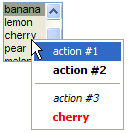
Some months ago I explained how to set a context (right-click) menu on a uitree control. I shall now show how to implement a similar dynamic context-menu on a listbox. The code is an extension of the segment resented above:
% Prepare the context menu (note the use of HTML labels) menuItem1 = javax.swing.JMenuItem('action #1'); menuItem2 = javax.swing.JMenuItem('<html><b>action #2'); menuItem3 = javax.swing.JMenuItem('<html><i>action #3'); % Set the menu items' callbacks set(menuItem1,'ActionPerformedCallback',@myFunc1); set(menuItem2,'ActionPerformedCallback',{@myFunc2,data1,data2}); set(menuItem3,'ActionPerformedCallback','disp ''action #3...'' '); % Add all menu items to the context menu (with internal separator) jmenu = javax.swing.JPopupMenu; jmenu.add(menuItem1); jmenu.add(menuItem2); jmenu.addSeparator; jmenu.add(menuItem3); % Set the mouse-click event callback % Note: MousePressedCallback is better than MouseClickedCallback % since it fires immediately when mouse button is pressed, % without waiting for its release, as MouseClickedCallback does set(jListbox, 'MousePressedCallback', {@mousePressedCallback,hListbox,jmenu}); % Mouse-click callback function mousePressedCallback(jListbox, jEventData, hListbox, jmenu) if jEventData.isMetaDown % right-click is like a Meta-button % Get the clicked list-item %jListbox = jEventData.getSource; mousePos = java.awt.Point(jEventData.getX, jEventData.getY); clickedIndex = jListbox.locationToIndex(mousePos) + 1; listValues = get(hListbox,'string'); clickedValue = listValues{clickedIndex}; % Modify the context menu or some other element % based on the clicked item. Here is an example: item = jmenu.add(['<html><b><font color="red">' clickedValue]); % Remember to call jmenu.remove(item) in item callback % or use the timer hack shown here to remove the item: timerFcn = {@removeItem,jmenu,item}; start(timer('TimerFcn',timerFcn,'StartDelay',0.2)); % Display the (possibly-modified) context menu jmenu.show(jListbox, jEventData.getX, jEventData.getY); jmenu.repaint; else % Left-click - do nothing (do NOT display context-menu) end end % mousePressedCallback % Remove the extra context menu item after display function removeItem(hObj,eventData,jmenu,item) jmenu.remove(item); end % Menu items callbacks must receive at least 2 args: % hObject and eventData – user-defined args follow after these two function myFunc1(hObject, eventData) % ... function myFunc2(hObject, eventData, myData1, myData2) % ... </font></b></html></i></html></b></html> |
Setting dynamic tooltips (trapping mouse movements)
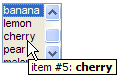
As a final example for today, let’s set a dynamic tooltip message, based on the actual mouse hover position. For this we need to trap the MouseMovedCallback property of the Java control:
% Set the mouse-movement event callback set(jListbox, 'MouseMovedCallback', {@mouseMovedCallback,hListbox}); % Mouse-movement callback function mouseMovedCallback(jListbox, jEventData, hListbox) % Get the currently-hovered list-item mousePos = java.awt.Point(jEventData.getX, jEventData.getY); hoverIndex = jListbox.locationToIndex(mousePos) + 1; listValues = get(hListbox,'string'); hoverValue = listValues{hoverIndex}; % Modify the tooltip based on the hovered item msgStr = sprintf('<html>item #%d: <b>%s</b></html>', hoverIndex, hoverValue); set(hListbox, 'Tooltip',msgStr); end % mouseMovedCallback |

Hi!!
I tried the above code; In order to make it work, you need to change eventdata into jEventdata in the code described in “Setting dynamic right-click context menu”
The first 2 lines should be:
instead of
otherwise the third line:
may return an error:
??? The class “eventData” is undefined.
Perhaps Java is not running.
Thanks for this blog, very helpful!!
Aurélien
oups I forgot to make the change in my previous comment : eventdata into jEventdata
The first 2 lines should be :
Thanks Aurélien – I fixed the post accordingly
Hello,
Tanks for a very nice tutorial, but when I run the line
I get the error:
No appropriate method, property, or field getViewport for class
handle.handle.
Error in ==> rightClickTest at 10
jListbox = jScrollPane.getViewport.getComponent(0);
I use Matlab version 7.9 (R2009b). Any idea what is wrong and is it easy to fix?
@Patrik – this indicates that for some reason your jScrollPane is an invalid handle when you run the relevant code. Most probably it is not visible onscreen for some reason.
Thanks so much for this, it is exactly what I was looking for!
Dear Yair, thank you very much for the time and effort you put in this project. There was really the need of it, as for many users that do not know Java, customizing Matlab GUIs is really an uphill task.
Related to your post, I would like to ask you how it would be possible to enable mouse wheel scrolling of a listbox, when the pointer hovers within the listbox limits, that is, without first select (focus) the lixtbox by mouse clicking or other means of selection.
The behavior I am trying to replicate is really standard nowadays with listboxes (particularly on the net), and I believe, and quite “natural” too!
Thank you very much in advance and for your help and congratulations for your site.
Regards
Dan
@Dan – thanks for the feedback.
Wheel scrolling can easily be processed by setting jListbox’s MouseWheelMovedCallback property to a Matlab callback function.
I’m not sure whether Java raises this event if the listbox is not focused. If so, then all you need to do is to trap MouseEnteredCallback and within its callback function call jListbox.requestFocus(). Subsequent mouse wheel events should be raised since the listbox will gain focus immediately upon mouse entry, similar to the X-Windows behavior.
Thank you for your advice.
I’ll get to it right away. I am not a “pro” programmer and I’ll try to figure out how to proceed from your trace.
Best regards
@Yair
Good evening.
I have put in practice your advice and by using the MouseWheelMovedCallback you describe above, it is easy to have the mouse wheel scrolling the list as desired, either by issuing the jListbox.requestFocus() you suggest or by using the Matlab builtin uicontrol(hListbox) function as each of them put the list in focus. Do you think there is an easy way to release the focus (other than clicking outside) and stop the mouse wheel scrolling the list, once the mouse is moved outside the listbox boundaries?
Thanks
Dan
@Dan – you could try placing figure(gcf) in your jListbox’s MouseExitedCallback code. This will transfer the focus to the figure, and hopefully remove the focus from the listbox.
Hi Yair,
I’ve been getting a lot of use out of your web site, thank you!
I’m trying to create a listbox whose items can be reordered by clicking and dragging items. However, the MouseDraggedCallback doesn’t seem to be triggering for listboxes (works fine for pushbuttons etc.):
I think it has to do with the default mouse-dragging behaviour for listboxes, which changes your selection as you drag your mouse (note: I’m also hoping to get rid of this behaviour). I thought one alternative might be to use MouseMovedCallback, enabled by a MousePressedCallback and cleared by a MouseReleasedCallback, but MouseMoved only responds when the mouse isn’t being pressed.
Do you have any advice? Thanks!
-Erik
Hi,
For anyone else who encounters this problem, I’ve found a solution. Matlab listboxes, uicontrol(‘style’,’listbox’), by default don’t allow drag-and-drop or MouseDraggedCallbacks. However, setting the underlying Java JList’s ‘DragSelectionEnabled’ property to false removes the problem:
Another alternative is to directly create a javax.swing.JList, which directly allows drag-and-drop, however I found that led to other complications. Specifically, for my task of making the listbox reorderable, to change the JList’s contents meant creating a Java DefaultListModel for the list; the DefaultListModel’s contents need to be changed one item at a time; and each update triggered a refresh to the JList, causing unstable graphics and sometimes throwing Java exceptions.
I’ve created a utility that creates reorderable lists, available on the Matlab File Exchange:
http://www.mathworks.com/matlabcentral/fileexchange/37642-reorderable-listbox
-Erik
hello,
first of all, thanks for your done work.
i don’t know whether this site is still maintained but when calling myfunc1 and myfunc2 there is a typing error. compare it with the implementation of myFunc1&2. large and small letters are swapped.
-alex
@Alex – thanks, corrected
Thanks for this!
I have a question:
how can I get the “handles” variable of my GUI in the linked callback function.
my solution is:
Is there any easy way?
thank you very much!
@Flo – you can simply add the
handlesstruct to the callback function as an extra input arg:Hi, Yair:
Is there anyway to ban or ignore double click action on listbox ?
Thanks
@Sih – I don’t know a direct way to disable double-clicks in listboxes, but in your callbacks you can easily test for that and ignore such events. For example:
Hi Yair, I would like to know, how can i create a context menu with the options “Select all”, “Copy”, “Cut”, “Paste” in listbox ? Thanks.
@Luis – you can use the built-in uicontextmenu to create the context-menu, and the clipboard function for clipboard access. Take a look at the documentation, both of these are fully supported/documented functions.
Hi Yair,
is it possible to put a callback to the vertical scroll bar?
For example I would be interested to detect a double mouse click on it?
Thank you!
@Ilya – yes, see here:
* http://undocumentedmatlab.com/blog/uicontrol-callbacks
* http://undocumentedmatlab.com/blog/matlab-callbacks-for-java-events-in-r2014a
Hi Yair,
thank you for the prompt reply!
It works, I was able to get a handle to the scroll bar using
jScrollPane.getVerticalScrollBarmethod and set a callback that detects double clicks using
jEventData.getClickCountBut is it possible to limit callback only to the knob of the scroll bar, because now the callback is triggered upon press to any part of the scroll bar?
Thank you again!
@Ilya – perhaps you can get the clicked location (X,Y) and compare this to the knob’s position, ignoring locations outside it.
Hi Yair,
First thank you for your amazing website, it has been really useful for me !
I would like to have different tooltips for the different object of my popupmenu.
I tried to use the same idea that you are using for the uicontrol ‘Listbox’ but for a uicontrol ‘Popupmenu’. I just want to have the dynamic tooltips.
I tried to simply replace ‘Listbox’ by ‘Popupmenu’ in the code but it does’t work. I got the error :
I used
uiinspectto check and I saw that there is no getViewport in the jScrollPane when I use the uicontrol ‘Popupmenu’I am not familiar with java so I have trouble to figure out what I should modify to have the code working with ‘Popupmenu’
Thanks in advance
Jonathan
@Jonathan – popups do not use a viewport in the same manner as a listbox. You can have more control over the appearance and behavior if you use JIDE comboboxes directly, as briefly explained here and in more detail in my Matlab-Java book.
Thanks Yair,
I looked at your book and I found some part of the modification I should implement on p. 414:
I added the hFig = figure; at the beginning but there is still some part of the code missing especially the part that define jPopup and where you place it. Can you give me some hint ?
Thanks in advance
Jonathan
Hi Yair
how can I change background color for jmenu described in the previous example?
I try
But the classic gray background color does not change…
@Claudio – I don’t know why you posted this question here – it seems to relate to popup/dropdown menus and not listboxes. In any case, such menu items cannot be modified using the setBackground method, you need to either use a custom Java cell-renderer object, or modify the menu string to include HTML background, for example:
Hi Yair,
I applied dynamic tooltip example on jcombobox, but there is no
“locationToIndex” property for jcombobox.
How can I overcome this problem?
Thanks
Ozgu
@Ozgu – combobox popups are not the same as listboxes, although they share some common aspects. For example, combo-box items do not have tooltips by default – only the main edit-box component of the combo-box has a tooltip. It is indeed possible to use Java to display a tooltip for each combo-box item (using a dedicated renderer, example 1, example 2), but this is not easy to achieve in Matlab, and is beyond the scope of this post.
Thank you for your answer Yair,
Ok. Can I add a mouse hover event for each item for Jcombobox
Thanks again
Ozgu
@Ozgu – yes you can but only if you create a dedicated Java cellrenderer class for this (i.e., not in pure Matlab)