
Last week, while consulting a client, I watched him use a Matlab application that processed data and presented the results in a figure window. I saw that he constantly needed to go to File/Print-Preview menu option to customize the figure’s print setup before being able to print. He would constantly click the “Fill Page” button, then go to the Color tab and set RGB rather than Black-and-White, and finally go to the Advanced tab to prevent printing UI controls. Only then would he actually print the figure using the menu (File/Print) or the toolbar Print button.
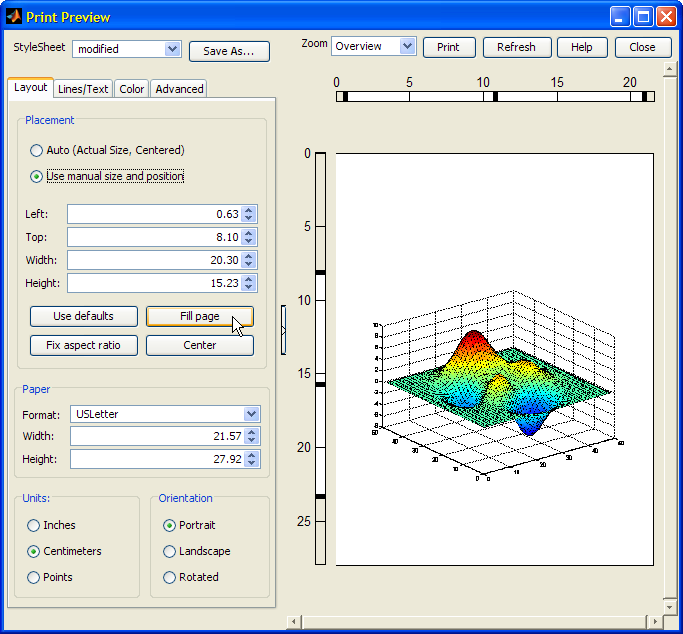
This is absurd, I thought to myself – there must be a better way. Unfortunately, Matlab only supports two documented ways to modify the print setup:
- the print function enables setting print settings when actually printing the figure. It accepts a long list of optional parameters that specify a wide range of printing options. But if I want to allow users to print at their own time, using the default figure menu/toolbar, I need to separate the actions of (1) setting the print setup and (2) doing the actual printout action. Since print does both of these together, we can’t use it. Moreover, if we don’t call print, the setup remains at the default settings and the menu/toolbar printouts use this default setup.
- the printopt.m file stores the user’s default print setup. This file can be modified (use the printopt function). However, it affects all Matlab printouts, and cannot be configured on a figure-by-figure basis.
Of course, lack of a documented method never stopped us before. Sure enough, after a short search I discovered the hidden potential of the undocumented/unsupported setprinttemplate function. This function, called internally by Matlab’s print-related functions, is responsible for setting the figure’s initial print setup. Once I had this key, unlocking the problem was easy. Here is the bottom line:
The figure’s default print setup is stored in the figure’s hidden ApplicationData property, accessible via the getappdata and setappdata functions or directly via get/set, as explained in a previous post. More importantly, the figure-specific setup is stored in another hidden property, PrintTemplate. Both of these setup data are stored in structure format, which is not available when a figure is first created, but only after printing or print-preview. Note that printtemplate.m contains detailed explanations about the meaning of some fields – to see them, simply display the file:
>> type printtemplate.m % or: edit printtemplate.m |
Unless we set PrintTemplate ourselves (or call print or printpreview to do this), printing the figure will use the default print setup. To set a non-standard setup, we just need to create the PrintTemplate structure with our non-default setup options. Matlab will then automatically use them when printing the figure. Here is a checklist for doing so:
- First, create a figure and get its default print setup data. Since this data is unavailable in newly-created figures, simply open the figure’s Print-Preview window without changing anything – this will create the missing print setup structure that we can retrieve:
% Create a simple figure
>> hFig = figure;  surf(peaks);
% Open the print-preview window to create setup data
>> printpreview(hFig);
% Retrieve the original (default) print setup data
>> oldSetup = get(hFig,'PrintTemplate')
oldSetup =
       VersionNumber: 2
                Name: ''
           FrameName: ''
         DriverColor: 1
     AxesFreezeTicks: 0
           tickState: {}
    AxesFreezeLimits: 0
            limState: {}
               Loose: 0
                CMYK: 0
              Append: 0
           Adobecset: 0
             PrintUI: 1
            Renderer: 'auto'
      ResolutionMode: 'auto'
                 DPI: 0
            FileName: 'untitled'
         Destination: 'printer'
         PrintDriver: ''
           DebugMode: 0
          StyleSheet: 'default'
            FontName: ''
            FontSize: 0
        FontSizeType: 'screen'
           FontAngle: ''
          FontWeight: ''
           FontColor: ''
           LineWidth: 0
       LineWidthType: 'screen'
        LineMinWidth: 0
           LineStyle: ''
           LineColor: ''
        PrintActiveX: 0
           GrayScale: 0
             BkColor: 'white'
             FigSize: [14.8054083333333 11.10405625]
- Next, go to the File/Print-Preview menu option and modify the setup according to your specific needs, and retrieve the new (modified setup):
>> newSetup = get(hFig,'PrintTemplate');
- Now compare the two structures and retrieve only the modified setup options. This can be done in several ways – I personally use the objdiff utility. In our case, we modified the DriverColor (B&W => color), FigSize (for “Fill page”), and PrintUI (for hiding UI controls) fields:
>> objdiff(oldSetup,newSetup)
ans =
    DriverColor: {[0]  [1]}
        FigSize: {[14.8054083333333 11.10405625]  [2x1 double]}
        PrintUI: {[1]  [0]}
     StyleSheet: {'default'  'modified'}
       limState: {{}  ''}
      tickState: {{}  ''}
- Finally, use the undocumented printtemplate and setprinttemplate functions to prepare the default setup sub-structure, and override with the modified options that you have just discovered. Place this in the figure’s _OpeningFcn function (for GUIDE-generated figures) or in your figure’s initialization function (for non-GUIDE figures). For example, if we have a GUIDE-generated figure called “MyFig”, then place this code in the MyFig_OpeningFcn function in MyFig.m:
function MyFig_OpeningFcn(hObject, eventdata, handles, varargin)
  ...
  % This was adapted from initprintexporttemplate.m
  pt = printtemplate;
  pt.StyleSheet = 'modified';
  pt.VersionNumber = 2;   % important (Note #1 below)
  pt.FigSize = [38.1, 21.0];
  pt.DriverColor = 1;
  pt.PrintUI = 0;
  % we must set the paper size *before* setprinttemplate
  set(hObject, 'PaperPositionMode','manual', ...
               'PaperPosition',[0 0.5 29.5 20], ...
               'PaperSize',[29.68 20.98], ...
               'PaperType','A4');
  setprinttemplate(hObject, pt);
  % Choose default command line output for MyFig
  handles.output = hObject;
  % Update handles structure
  guidata(hObject, handles);
That’s all there is to it. So easy once we know how, isn’t it? The most annoying pain-in-the-so-and-so sometimes have simple solutions…
Note #1: it is very important to set pt.VersionNumber to 2, otherwise some modifications will not take effect.
Note #2: the internal implementation of printtemplate as well as the internal setup fields have changed between Matlab releases. These were often minor backward-compatible changes, but at least once this was a major change (VersionNumber 1=>2, I think around Matlab 7.2, but I’m not sure). Therefore, carefully test your code on the oldest release which is supposed to run it. Also, if you plan the code to run in future Matlab releases, you should note that the entire setup functionality might break without prior notice, since it is an internal unsupported implementation.

Is this not what the ‘StyleSheet’ option in the print dialog is used for?
Sebastiaan – the point in this post was to enable full programmatic access to the Print options customization, without need for any manual intervention.
I’ve struggled with this for years. I have some preferred styles for journal papers, others for web pages and yet more for presentations. I gave up and wrote a relatively simple function that addresses much of the above.
I don’t want to repost the details here, but see matlabcentral for my solution – a ‘readyforprint’ function;
http://www.mathworks.com/matlabcentral/fileexchange/26400-function-readyforprint
the result is that a single command can be used to produce nicely-formatted images;
produces images 5.08 inches wide, 2.21 tall, 8 pt text, black foreground (lines and markers) and white background. All the lines are 1 point thick. Gives very nice output for a journal figure!
The OP didn’t work well. Another search found the following.
http://itb.biologie.hu-berlin.de/~schaette/HomeFiles/MatlabPlots.pdf
Code to “Fill page” for US letter.
New to Matlab and this appears to be the solution I am after. However, I stumble at step 4 at “or in your figure’s initialization function (for non-GUIDE figures)” I cant seem to make this work. Could you possibly provide a code snippet or clues as to how to implement for a “non-GUIDE” figure. Thanks
Step 4 already contains a code snippet. You just need to adapt it in your code (hObject is the figure handle). If you want my personal assistance, please contact me by email.
I agree with Rich – this is not very clear for non-Guide things.
Ultimately I am happy using a ‘mydefault’ stylesheet. I just want to know how to get Matlab to load ‘mydefault’ automatically at startup.
But anyway thanks for your hard work running this website.
Jim
Sir i want to print barcode from matlab. i generated barcode using text command but it cannot be readable by barcode scanner. am using godex ez2100 printer for printing.
please help me if possible
@Akash – try using a different barcode font face, or increase your font size