
A few days ago, a client asked me to integrate an MRU (most-recently-used) file list in a Matlab GUI window. The naive approach was to add a new “Recent files” main menu, but this would look bad. Today I explain how to integrate the MRU list into the toolbar’s standard “Open File” button, as well as into the standard “File” main menu.
Customizing the standard “File” main menu
Note: this relies on earlier articles about customizing the figure menubar, so if you are not comfortable with this topic you might benefit from reading these earlier articles.
Customizing the standard “File” main menu is easy. First, let’s find the “File” main menu’s handle, and add an MRU sub-menu directly to it:
hFileMenu = findall(gcf, 'tag', 'figMenuFile'); hMruMenu = uimenu('Label','Recent files', 'Parent',hFileMenu); |
Our new MRU menu item is created at the end (in this case, at the bottom of the “File” main menu list). Let’s move it upward, between “New” and “Open…”, by reordering hFileMenu‘s Children menu items:
hAllMenuItems = allchild(hFileMenu); set(hFileMenu, 'Children',fliplr(hAllMenuItems([2:end-1,1,end]))); % place in 2nd position, just above the "Open" item |
Now let’s fix the “Open…” menu item’s callback to point to our custom openFile() function (unfortunately, the “Open…” menu item has no tag, so we must rely on its label to get its handle):
hOpenMenu = findall(hFileMenu, 'Label', '&Open...'); set(hOpenMenu, 'Callback',@openFile); |
Finally, let’s add the MRU list as a sub-menu of the new hMruMenu. I assume that we have a getMRU() function in our code, which returns a cell-array of filenames:
% Add the list of recent files, one item at a time filenames = getMRU(); for fileIdx = 1 : length(filenames) uimenu(hMruMenu, 'Label',filenames{fileIdx}, 'Callback',{@openFile,filenames{fileIdx}}); end |
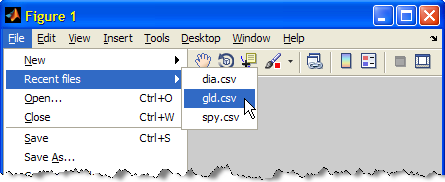
Clicking the main “Open…” menu item calls our openFile() function without the optional filename input argument, while selecting one of the MRU files will call the openFile() function with that specific filename as input. The openFile() function could be implemented something like this:
% Callback for the open-file functionality (toolbar and menubar) function openFile(hObject,eventData,filename) % If no filename specified, ask for it from the user if nargin < 3 filename = uigetfile({'*.csv','Data files (*.csv)'}, 'Open data file'); if isempty(filename) || isequal(filename,0) return; end end % Open the selected file and read the data data = readDataFile(filename); % Update the display updateGUI(data) end |
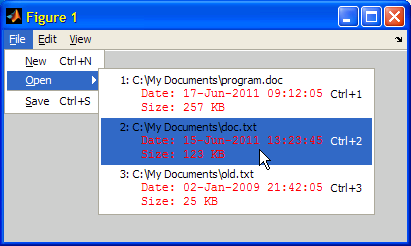
We can take this idea even further by employing HTML formatting, as I have shown in my first article of the menubar mini-series:
Customizing the standard toolbar’s “Open File” button
Note: this relies on earlier articles about customizing the figure toolbar, so if you are not comfortable with this topic you might benefit from reading these earlier articles.
The basic idea here is to replace the standard toolbar’s “Open File” pushbutton with a new uisplittool button that will contain the MRU list in its picker-menu.
The first step is to get the handle of the toolbar’s “Open File” button:
hOpen = findall(gcf, 'tooltipstring', 'Open File'); hOpen = findall(gcf, 'tag', 'Standard.FileOpen'); % Alternative |
The second alternative is better for non-English Matlab installations where the tooltip text may be different, or in cases where we might have another GUI control with this specific tooltip. On the other hand, the 'Standard.FileOpen' tag may be different in different Matlab releases. So choose whichever option is best for your specific needs.
Assuming we have a valid (non-empty) hOpen handle, we get its properties data for later use:
open_data = get(hOpen); hToolbar = open_data.Parent; |
We have all the information we need, so we can now simply delete the existing toolbar open button, and create a new split-button with the properties data that we just got:
delete(hOpen); hNewOpen = uisplittool('Parent',hToolbar, ... 'CData',open_data.CData, ... 'Tooltip',open_data.TooltipString, ... 'ClickedCallback',@openFile); |
As with the menubar, the button is now created, but it appears on the toolbar’s right edge. Let’s move it to the far left. We could theoretically reorder hToolbar‘s Children as for the menubar above, but Matlab has an internal bug that causes some toolbar buttons to misbehave upon rearranging. Using Java solves this:
drawnow; % this innocent drawnow is *very* important, otherwise Matlab might crash! jToolbar = get(get(hToolbar,'JavaContainer'),'ComponentPeer'); jButtons = jToolbar.getComponents; jToolbar.setComponentZOrder(jButtons(end),2); % Move to the position between "New" and "Save" jToolbar.revalidate; % update the toolbar's appearance (drawnow will not do this) |
Finally, let’s add the list of recent files to the new split-button’s picker menu:
% (Use the same list of filenames as for the menubar's MRU list) jNewOpen = get(hNewOpen,'JavaContainer'); jNewOpenMenu = jNewOpen.getMenuComponent; for fileIdx = 1 : length(filenames) jMenuItem = handle(jNewOpenMenu.add(filenames{fileIdx}),'CallbackProperties'); set(jMenuItem,'ActionPerformedCallback',{@openFile,filenames{fileIdx}}); end |
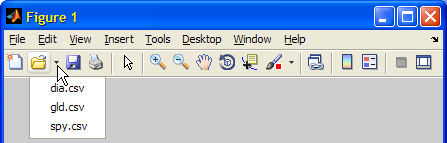
Clicking the main Open button calls our openFile() function without the optional filename input argument, while clicking the picker button (to the right of the main Open button) and selecting one of the files will call the openFile() function with that specific filename as input.
That’s it. Quite painless in fact.

Hi Yair
This is great stuff. I am sure when the time comes for me to dive into GUIs I will come back to this. I do have a couple of good ideas developed in Matlab waiting for a GUI.
Hi Yair,
I’ve been following your blog for a few years now, and first would like to say thank you. My comment isn’t exactly on the topic of this posting, but is closely related. I, like many others, have been frustrated by ML’s new desktop (as of R2012b). In particular, I’ve been irritated by the behavior of the figure toolbars when the figure group panel is docked (which has always been my preferred arrangement). For anybody who hasn’t tried it yet, all the figure toolbars, menubars, etc. get transferred up to a tab on the ribbon.
Especially frustrating is that I normally dock my figures on the right hand side of the desktop, which means that all the user interface components are on the far side of the screen from the figure, if the figure tab is even on top. Do you know of any way to return these interface components to the top of the figure group panel or the figures themselves? I think I could do an incredibly ugly and inefficient kludge by creating uibuttons in each figure when it’s created, but it seems to me there must be a better way.
Many thanks,
Dan
@Dan – I do not know of a way to do this. I agree with you that the current situation is far from perfect. It might be less frustrating to get used to working in an undocked Figures group (i.e., all the figures are docked, but the Figures group itself is undocked). You then have the old menubar and toolbar available at the top of the Figures window, as you’re used to.
Hi
I GUI programmer in MATLAB and visit your site recently. this is really great and useful.
I have a guestion about java objects that added in GUI of MATLAB.
How can I change the dimention of these objects in MATLAB.
for example I create the JprogressBar in my GUI.
it has the specific dimention:
get(JprogressBar,’Width’) === 148
but when I try to change it width by
set(JprogressBar ,’Width’,300)
MATLAB send this message:
Changing the ‘Width’ property of javahandle_withcallbacks.javax.swing.JProgressBar is not allowed.
What should I do?
@Reza – the javacomponent function that you use to display the JProgressBar returns a second output parameter that is the Matlab HG container. You can set this container’s Position property just like for any other Matlab HG control. alternately, you can set the Position directly in your call to javacomponent:
Hi
Thanks so much.
That is work. You are great….
When generating figure files using plot command in Matlab environment, the figure menu has items including Edit, View, Tools, etc… and toolbar contains the figure Edit tool Zoom etc.
But when the same script is executed after compiling it, it has only File in the menu item
Is there any way we can have standard Menu & tool bar in figure generated from compiled Matlab code
If not standard at least Zoom in, Zoom out, Edit, Copy, View Data (critical ones!)
Regards
Dew
@Dew – assuming you’re using GUIDE, try to set a custom figure toolbar and simply drag your desired tool icons onto the toolbar, from the standard palette on the left of GUIDE’s toolbar designer window.
@ Yair, thanks for the reply
unfortunately my script is using plot on several occasions to create the .fig files
when running in Matlab environment it is fine but in stand alone environment I do not see any tool bar & in menu item only File is left
Regards
Dew
Hi Yair
Thanks for this wonderful post. I have created the recent files list in the menu and toolbar successfully. But there were problems:
Because I need to get the handles for different sessions, so I modified your code to pass the handles as follows
I call this function when I open a file or save a file. I listed all filenames I selected from the recent file menu or open file menu in a popupmenu. when I select any filename from the popupmenu, the list of the filenames should remain same, but in fact it is changed to less filenames. It seems to me that the handles wasn’t updated correctly.
Do you have any idea how to solve this problem?
@Helly – your getMRU function probably returns less filenames than you expect. You should debug that function.
Hi Yair,
I have created a GUI in Matlab for my data analysis. I am trying to modify the save button according to my need. I am using the code writing at the this page but with a bit of modification as written below:
In the last line of the for loop I cannot use “
set(jMenuItem,'ActionPerformedCallback' {@mysave_ClickedCallback,savelist{fileIdx}});” since it resets all my GUI handles. Now at this point, I want to recognise whichsavelistitem is clicked in order to assign the appropriate action in my GUI.I was wondering if you could help me with this problem.
Many thanks,
AKh