
In this blog I have often showed how using Java components can significantly improve Matlab GUI. Here is a simple reminder:
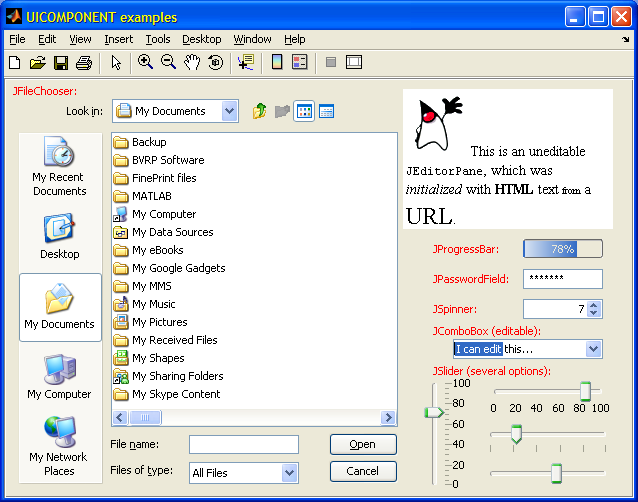
Matlab is highly integrated with Java, and Java classes can seamlessly be accessed from Matlab. However, displaying Java GUI objects, as opposed to using computational (non-displayable) Java classes, requires using Matlab’s built-in javacomponent function. I have often used this function in past articles here, and today I would like to describe it in more detail.
javacomponent
javacomponent, available since R14 (Matlab 7.0), is yet another semi-documented built-in function. This means that the function is explained in a comment within the function (which can be seen via the edit(‘javacomponent’) command), but nonetheless does not have official help or doc pages. It is an unsupported function originally intended only for internal Matlab use (which of course doesn’t mean we can’t use it).
javacomponent accepts a component class name (a string) or a reference to a previously-created component object, an optional pixel position parameter (default=[20,20,60,20], just like uicontrol; may also contain the strings ‘North’, ‘South’, ‘East’ or ‘West’), and an optional parent container handle (defaults to the current figure). javacomponent then adds the requested component as a child of the requested parent container and wraps it in a Matlab Handle-Graphics (HG) container. javacomponent returns two handles: the Matlab HG container handle and a reference (handle) to the Java component. Here are some sample invocation formats:
>> [jButton, hButton] = javacomponent('javax.swing.JButton') hButton = javahandle_withcallbacks.javax.swing.JButton jButton = 158.002197265625 >> javacomponent('javax.swing.JButton','North'); >> javacomponent(javax.swing.JButton('Click me!'),[50,40,80,30]); >> javacomponent(javax.swing.JButton('Click me!'),'East',hFig); |
Note the difference between Java object creation and javacomponent: A pre-created Java object only resides in JVM (Java Virtual Machine) memory, not onscreen, until javacomponent is called to display it. javacomponent only creates objects when a class name (string) parameter is passed to it, as a convenience service to programmers. In practice, it is better to separate these two actions: create the Java object separately, and then pass the object’s reference handle to javacomponent for display. This enables easier error-trapping if the Java object cannot be created or fails to initialize, before attempting to display the object:
% Create and initialize a JScrollBar object try jScrollbar = javaObjectEDT('javax.swing.JScrollBar'); jScrollbar.setOrientation(jScrollbar.HORIZONTAL); catch error('Cannot create Java-based scroll-bar!'); end % Display the object onscreen try javacomponent(jScrollbar,'South'); catch error('Cannot display Java-base scroll-bar!'); end |
Note that Java GUI object should always use the EDT (Event Dispatch Thread). The reasons for this were outlined in the recent Matlab-EDT article. For this reason, the JScrollBar is created using the built-in javaObjectEDT function, which exists since R2008a and became documented/supported in R2009a.
javacomponent accepts parent handles that are figures, toolbars, uipanels or uicontainers. Unfortunately, frames are not uicontainers and therefore cannot be used as javacomponent parents. Addendum Aug 6 2010: I made an incorrect statement in the original post here regarding uipanels, which has now been removed. I thank the reader who pointed this out to me.
Once the component has been created, even before it has been placed onscreen, it can be manipulated just like any other Java object. For example:
jButton.setText('Click again!'); % or: set(jButton,'text','…') |
The component can also be manipulated to some extent via its HG container, which is of a special Matlab type (class) called hgjavacomponent. This includes getting/setting the component position, position units, visibility, resizing callback, tag, UserData etc:
set(hButton,'units','norm', 'position',[0.2,0.3,0.1,0.05]); set(hButton,'visible','off'); %note: on/off, not true/false as in Java set(hButton,'ResizeFcn',{@resizeCallbackFunc,param1,param2}); |
When adding Java components which are container classes (descendants of java.awt.Container), it is important to remember that only other Java components can be added to these containers. Matlab objects such as axes (for plots or images) and uicontrols cannot be added since they do not have a Container wrapper. Therefore, feel free to use these Java containers as long as their contained GUI is limited to Java components (JButton, JComboBox etc.). This limitation is very annoying – it would be very useful to be able to place Matlab axes or uicontrols within a JTabbedPane or JSplitPane. Instead, we need to rely on Matlab-based workarounds (uitab and uisplitpane) which are cumbersome compared to their Java counterparts.
javacomponent can be used to place not only Swing components but also Swing-extended components onscreen. Matlab itself almost never uses Swing components as-is, instead preferring to use MathWorks-derived extensions of these components, generally in the com.mathworks.mwswing or com.mathworks.widgets packages. These packages and their classes are all in the static Java classpath and are therefore automatically available for use by Matlab programmers.
Just like Matlab components, javacomponent can also display third-party or your own Swing-derived components. There are quite a few online sources for Swing components that can easily be incorporated in your Matlab application. Simply download the relevant class files, add them to your static (via classpath.txt) or dynamic (via javaaddpath) Java classpath, use javacomponent to display them, then use their reference handle to manipulate their appearance and behavior.
javacomponent, useful as it is, has several limitations. In its string variant (classname) it requires a fully-qualified classname that is not inferred automatically. It also has a different parameters format than uicontrol, which may confuse users. javacomponent also cannot display java.awt.Window components. Finally, it returns two handles – one is a handle() reference of the Java object; the second an HG handle (a double numeric value) of the automatically-created HG container – users are often confused as to which property should be set on which of these handles.
javacomponent-based utility functions
To overcome these limitations, I created UIComponent – a utility that merges uicontrol and javacomponent, available for download on the File Exchange. It accepts all uicontrol parameters and styles, as well as any other displayable Java (Swing/AWT) class. uicontrol‘s calling syntax was preserved for full backwards compatibility. uicomponent uses the built-in uicontrol whenever possible (for standard Matlab styles), and javacomponent for all other Java classes.
uicomponent returns the same two handles that javacomponent returns (namely, a Java reference handle and a numeric HG handle), modified to include each other’s properties and handles (yet another undocumented trick that merits a dedicated article). Here are some examples (more can be found in uicomponent‘s help comment):
uicomponent('style','edit', 'String','hello'); % a regular uicontrol uicomponent(hFig, 'style','edit', 'String','hello'); % specify parent uicomponent('style','jspinner','value',7); uicomponent('style','javax.swing.jslider','tag','myObj'); uicomponent('style','JComboBox',{1,pi,'text'},'editable',true); |
Another File Exchange submission which aims to tackle some of javacomponent‘s limitations is Malcolm Lidierth’s JCONTROL. jcontrol uses Matlab’s new object-oriented class approach and has the benefit of returning just a single handle object, which aggregates the handles for both HG container and the contained Java object.

Is it possible to get html links working using this method?
Something like the following (which doesn’t work):
**[edited for clarity]**
This works, even underlines the links and colors them blue, but won’t open a browser if you click on them. Thoughts?
[…] An aspect of Matlab GUIs that include Java components that is often encountered (most recently reported yesterday) and is easily fixed, is Matlab’s default exclusion of all javacomponents from its focus traversal cycle. […]
Are there any work-arounds to get a component to fill the entire figure area (pane), so resizing works well?
e.g.
would create a button but it would only be attached to the right-handed side of the pane. If a button is created in pure Java with borderlayout and is placed in the center, it will expand to fill the entire parent, and also resize with it.
@Martin (MJJ) – yes, this is possible: javacomponent returns two handles if you use its regular invocation form: javacomponent(component,position,container) (i.e., not the form that you have used) – the second handle is a handle to the regular HG Matlab container. You can easily modify this HG container’s Units property to ‘normalized’ and this will keep your component’s size and position synchronized with its container. If the container if the figure, you’re all set. If not, then you need to also fix the container and so on, just as you would do for any Matlab HG control.
If you need finer-grained control (for example: attach to bottom-right, while preserving the pixel size), you can always trap the container’s ResizeFcn and modify the component size and/or position programmatically.
Side-note: the 2-argument javacomponent form that you mentioned does not return an HG container because the JButton is attached to the figure’s content directly, not via a java.awt.Panel container which is assigned to the HG handle. Using this method is actually a topic for an entire future article, due to the possibilities that it enables…
Thanks for the quick reply!
I guess it kinda works:
will give you a nice big button (or small if you resize) but if you make it really big you can see that it is really anchored to the SW borders and that there actually is a small gap in the NE borders.
Will I just have to live with that or do you have more tricks up your sleeve?
@Martin (MJJ) – The gap is due to external margins that each control has, and internal margins (insets) of the containing RootPane. They are only a few pixels in size – is it that bothersome?
I guess I can live with that 🙂
I made a blunder somewhere in my larger GUI app, which gave a larger gap, now it’s only a few pixels.
I have been unsuccessful in actually changing the contents of a the editable JComboBox specified by your example above. Can you please suggest a procedure for this? Thanks!
@GDL – updating the
JComboBoxis easy:hello,
Is it possible to set the background of javacomponents transparent ? I have 2 JLabel which overlay (this is deliberate) so that one is hiding a text part of the other one… Could you help me please ?
@Julien – all Matlab GUI controls, including uicontrols and javacomponents, use a heavyweight
java.awt.Panelcontainer, rather than a lightweightjavax.swing.JPanel. Unfortunately, the heavyweightPanels, unlike lightweightJPanels, cannot be made transparent. This means that even if the control or component is made transparent, this would still have no effect since their containingPanelis opaque. See an interesting discussion on this here. Note that while individual controls are opaque, the entire figure window can be made fully or partially transparent, as I have recently shown.To solve your immediate question about overlapping labels, you could perhaps simply use overlapping text labels that are displayed on an invisible axes (i.e., no grids, no x/y labels etc.).
Follow-up: http://undocumentedmatlab.com/blog/transparent-labels
Can we set all uicontrol properties in single line of code to the object created by javacomponent example parent,background color ,tag,and etc.
ex:uicontrol(‘parent’,hfig,’tag’,’ghs’,’style’,’push’,’Backgroundcolor’,[1 1 0]);
i want to do it for javacomponent in single line what is the syntax is it same as java syntax
@appy – the syntax is different – javacomponent only accepts the three parameters mentioned in the article: object, position and parent. However you can always use the built-in set function to update multiple properties of the Java object in a single line, just as you can do with a uicontrol‘s properties. Note, however, that using set for Java properties is discouraged, and you should generally use the jObject.setXXX() notation to prevent memory leaks.
I’m unfamiliar with Java (all I know I have picked up from this website while trying to make a gui with functionality that documented matlab does not have) so which uicomponent or javacomponent ‘style’ would I use to create a scrollable non-editable text box (basically this box is a long skinny rectangle about 6 lines of text tall which usually but not always be tall enough to display a prompt to the user, and when appropriate the user can type stuff into a different long skinny text box, with a few buttons in between them)
never mind I found your post on matlab central about using a multiline edit box with editable set to off.
Hello,
Thank you for these impressive works and tools making matlab gui much more efficient!
I’m actually using a jslider thanks the uicomponent tool. It’s works nicely however I’d like to change the slider labels more or less as it is shown at the end of this article:
http://docs.oracle.com/javase/tutorial/uiswing/components/slider.html
According to this article, I should first create a table. I’m not very familiar with java and even less java with matlab, would you have any idea how to create this java table within a matlab code and then customize my jslider ?
Thanks !
@jadey – as I explain in section 2.1 of my Matlab-Java Programming book, creating and using a Java Hashtable in Matlab is extremely easy. Here’s the original Java code from the webpage that you mentioned:
And here’s the equivalent Matlab code – note how closely it correlates with the Java code above:
Thank you for your real quick answer!
Hi, I am using uicomponent under Matlab 2008b. I am now reading your book and the section on the EDT.
However, in this thread: https://www.mathworks.com/matlabcentral/newsreader/view_thread/247071, you say that uicomponent does not place components on the EDT. However, I can’t find out what, exactly, is required from me to accomplish this.
Do I just pass the component handle returned by uicomponent through javaObjectEDT? Or does it need to happen earlier, somewhere inside the uicomponent? Or do I need to pass it through findjobj first? Or am I completely mixed up and it has to be something else entirely?
Thank you very much for your help.
@Todd – you can use javaObjectEDT anytime you wish – it will start using the EDT from that point onward.
[…] is an open bug on R2012b and R2013a whereby the clf function does not delete javacomponent objects. This bug does not affect HG2, where clf works […]
[…] in R2012b (Matlab 8.0) something broke and controls that are added to the figure window using the javacomponent function are no longer cleared by clf – all the regular Matlab axes and uicontrols are deleted, but […]
[…] javacomponent is the undocumented built-in Matlab function that adds Java Swing components to a Matlab figure, using the given dimensions and parent handle. I discussed it here. […]
[…] problems/limitations. We can create and display the component in one go using the semi-documented javacomponent function: position = [10,100,90,20]; % pixels hContainer = gcf; % can be any uipanel or […]
Hallo Yair,
You presented very nicely a way to introduce a jSlider in matlab. However, I would like to ask if there is a possibility to add a jSlider with 2 thumbs. So 2 values can be adjusted within the range of the slider.
Something like this .
@Giorgos – such a control is not part of the standard Swing library, but you can download it from 3rd-parties and use it in Matlab in exactly the same manner, using the javacomponent function.
Hallo Yair,
What a great blog! Congratulations.
I would like to create a panel. The panel has to have scrolling options. Unfortunately, I have a problem. JViewport does not display the whole entire scrolling client. That means 8 defined pushbuttons are never displayed together. Only some of them, depending on where they are located. I do not understand this. Can you help me?
It’s part of my code
Best Regards,
Rafael
This is my solution:
Hi,
I’m working on a Matlab GUI and was trying to implement a JDesktopPane with JInternalFrames.
Is it possible to put Matlab GUI Elements (uicontrols, axes) into a JInternalFrame? I’ve managed to create an JInternalFrame and add it into the JDesktopPane, but I don’t know how to add a Matlab GUI Element.
I have created the JDesktopPane using the JCONTROL class. It is stored in ‘obj.handles.desktop’, I can add a JInternalFrame via ‘obj.handles.desktop.add( handle )’.
I used this to create the JInternalFrame:
This works for opening an JInternalFrame, but I do not have a Matlab handle to add Matlab components. If I try and add an ‘[jHandle, mHandle] = javacomponent(iframe);’, a second JinternalFrame with ‘zero size’ opens bottom left of the screen.
I never worked with Java and this is my first bigger Matlab GUI project, so I am quite new to this.
Thanks for helping and your very helpful Blog!
Jan
@Jan – you cannot add Matlab components to Java containers (e.g.,
JInternalFrame) – you can only add Java components to Matlab containers.Hi,
I would like to access the axis canvas handle in matlab figure. I use the following code to do it:
It seems h_nativeWH returns correct value on windows, but on Mac OSX it returns the figure handle, hFig. Could you suggest if there is any other way of accessing axis canvas handle that works on Mac OSX? (I am running Matlab in HG2 mode with switch -hgVersion 2)
Thanks.
@Magpie – I don’t have a Mac, I’m afraid I can’t help you.
[…] (without GUIDE). Caveat: Doing anything with java handles is only possible when the GUI is visible, I think. Therefore it’s much better to place the FindJObj function in GUIDE’s […]
Hi Yair,
I have a problem when I’m using javacomponent. I have a jogl panel (GLJPanel) where I draw some animations on.
Then I want to add this jogl panel to a uipanel by using the following codes
the jogl panel is set to be transparent within java file and indeed it’s transparent when I test it in Java.
However, it’s not transparent in Matlab. I think it might be the problem of the container. Do you have any suggestion regarding this problem.
Thanks in advance.
@Kai – Matlab places your JOGL panel in a wrapper JPanel for its GUI. The problem is not in the JOGL panel but in Matlab’s wrapper JPanel, which is opaque.
Thanks for the reply.
But how can I set the wrapper JPanel to be transparent. I used some commands like:
or
But it doesn’t work. So I think the container is not the same thing as the wrapper JPanel you mentioned? Maybe I should first find the JPanel by using findobj?
You can try using
glpane.getParent, but I would suspect that you will find it cannot be made transparent. In many Matlab releases, it’s a heavyweightjava.awt.Panel(which cannot be made transparent) rather than a lightweight JPanel (which can).Thanks for your answer. So is there a way to put a transparent GLJPanel on an uipanel and the contents on the uipanel can be displayed? It seems that javacomponent is the only way to bind Java GUI with Matlab GUI. My situation is using
to show a live video stream on a uipanel/axes. The GLJPanel displays some transparent animation which is a mask of the video.
@Kai – I don’t know of a way to bypass javacomponent. It’s an m-file so you could theoretically drill down into lower-level functionality, but I doubt the end result will be much different. Let us all know if you find otherwise, that would be very interesting.
Eventually I use UpdatePreviewWindowFcn to convert each video frame image into a Java Image object. I also override paintComponent() of JPanel to setup the Image object as the JPanel’s background image. So it’s like I copy the video stream to the JPanel. But the drawback is the high usage of CPU (7% to 10% extra usage), I’m still looking for a better way.
Hi Yair,
Thanks a lot. this is amazing work.
I have one question, hope you know it….here is the date chosen..how about 24 hour? like second, minute, hour? Anyway you know?
And how can I set the figure title here…Thanks a lot.
@Emma – clarify your question. I do not understand it at all.
Hi Yair…
I mean that when we also want people to choose the exact hour, minute and second in one day.
About that hour, minute, and second choosing… So basically we want to specify the exact moment, not only date….
you get me?
Hello yair,
Do you know if the javacomponent function is still available in Matlab latest Release 2015b?
I am not able to find any documentation on the web.
@Mac – yes, javacomponent is still supported
Hello Yair,
The command
set(0,'HideUndocumented','off')is not anymore required with R2015b release of matlab?Thanks in advance
@Adrien – the HideUndocumented property was removed from the root handle in R2014b. To see the list of hidden/undocumented properties of a handle, use the getundoc utility.
Hello Yair,
I have a java component along with another normal uicontrols in a UI. The java componet is a Java Password Field and I created it this way:
Everything works fine but I want to make this Java Password Field the active field just at the starting of the UI.
If it was a normal uicontrol I know the method would be:
but this doesn’t work with a Java Object.
I tried things like
but it doesn’t work either. What should I do?
Thank you very much.
@Antonio – perhaps some other Matlab components render onscreen after you Java password field, and they take the focus away. Try to run your requestFocus() after a drawnow, at the end of all uicontrols creation.
Thank you Yair for your quick answer. It worked!
Hello Yair,
I have a Matlab gui and I want to add a JSlider. The jSlider is just placed, but I have problems to get it in the uipanel. The blog was hlepful, but I don’t understand how to handle this.
Thank you in advance.
Daniel
@Daniel – simply set the uipanel handle as the 3rd input arg of javacomponent(). If you need additional assistance with handling JSliders in Matlab, search this website for other posts, and/or get my Matlab-Java book, and/or ask me for a private consulting session.
Yair:
I used this approach to attempt to deal with graphics shortcomings in 2015b. I have some images that must be displayed in figures in a timed fashion. the timing must be short, but more importantly determinate. In 2015b, my application was failing because the figure display was slow and the time it took was highly variable.
I created a javacomponent perfectly overlaid on my figure axis, and display the figures on this. Rather than replace all of my code, I only do this in the time-critical steps, and allow MatLab to display plots and figures in the axes in less critical times. therefore, when the critical step is done, I delete the javacomponent.
Due to several other issues with no known workaround (primarily compiled MatLab issues) in 2015b, i have to revert to 2013b for now. I left the javacomponent steps in place, and my code fails. The issue is that the delete does not make the container disappear, and so it blocks the slower, non-java images form displaying.
Here is the setup of the javacomponent, and display of the first in a series of images. The image (imdisplay) is a matlab matrix converted to java with im2java2d. handles.projector is the handle to the figure, and sizeh, sizey are the dimensions of the image display area. The axes are set to completely fill the figure area:
Each additional image is displayed with:
At the end of the timed routine, I delete the javacomponent:
jc.deleteThis all worked great on 2015b, and gave consistent display timing (and quick). However, upon reverting to 2013b, the last step (delete) fails
Any thoughts?
Thanks
Chuck
@Chuck – don’t delete the component, but rather its Matlab container. This will work in both R2013b and R2015b:
I used uicomponent to create an array of jsliders and tried to use this array in another but nested function where values of the sliders will be read and manipulated. However I got an error message that the array is not defined. What could be that goes wrong?
You probably have a bug in your code. Use the Matlab debugger to find it.
Dear Yair,
I have one question: Would it be possible to set certain properties of elements (e.g. Text-Font or BackgroundColor) at once?
Right now I use to following scheme for that:
Thank you very much!
@johanes – you can do this:
Thank you very much Yair!
hello sir,
I have created a 2 tabgroups in my GUI.At first it is good but after adding uicontrols to those tabs using different panels i am getting errors and automatically a new hgjavacomponent is being added to GUI everytime i run the GUI. This results in abnormal behaviour of the GUI. How can i stop those hgjavacomponents visibility?
@Anu – this sounds like a bug in your code. Errors are not supposed to happen.
Yair
Is there a benefit to using javcomponent over hgjavacomponent?
@Collin – hgjavacomponent is a Matlab class that is meant to contain the relevant information on a contained Java-component (peer). You can think of it as a borderless panel that tightly-fits the Java peer, and enables users to set the control’s position, units etc. in a manner that is very similar to standard Matlab uipanels. Importantly, hgjavacomponent only creates this wrapper object, NOT the peer.
In contrast, javacomponent places the Java peer in the requested position, and also creates a corresponding hgjavacomponent object to provide the uipanel-like wrapper functionality. Both of these handles are returned when you call javacomponent (the java peer reference handle, followed by the hgjavacomponent container handle):
Thanks Yair,
So, it would be better to use javacomponent here?
yes
Hi Yair,
Thank you for your great blog.
I want to use a slider so I add it to my figure in my UI_OpeningFcn(hObject is the handle to the figure).
However, my GUI leads to to other GUIs. That is, whenever the user press a button, the main GUI is replaced by another GUI. Therefore I need to delete my java Object. How can I do this?
Since I have to access to it from the callback of the pushbutton, I’m not sure how to access the handle of the object. I have the handle of the figure but whenever I do this
I just get
What am I doing wrong? How can I delete this object?
Thanks in advance
@Ann – the best way to delete the object is via its Matlab container panel, which is accessible as the 2nd output of javacomponent: