
I last week’s post, Setting status-bar text, I showed how to set the status-bar text in Matlab figures and the main desktop. But Matlab status-bars are Java containers in which we can add GUI controls, not just simple text labels. In this post I will show how to do this for Matlab 7 figures.
Let’s return to the two alternatives I’ve presented in my previous post for setting a Matlab 7 figure status-bar text:
% Alternative #1 (hFig = requested figure's handle) jFrame = get(hFig,'JavaFrame'); jFigPanel = get(jFrame,'FigurePanelContainer'); jRootPane = jFigPanel.getComponent(0).getRootPane; jRootPane = jRootPane.getTopLevelAncestor; statusbarObj = jRootPane.getStatusBar; statusbarObj.setText(statusText); jRootPane.setStatusBarVisible(1); % Alternative #2 jFrame = get(hFig,'JavaFrame'); jRootPane = jFrame.fFigureClient.getWindow; statusbarObj = com.mathworks.mwswing.MJStatusBar; jRootPane.setStatusBar(statusbarObj); statusbarObj.setText(statusText); |
The first alternative uses the default status-bar (a com.mathworks.mwswing.MJStatusBar object) which Matlab automatically creates with each figure. This object is created as invisible, so we need to set its text (via its setText method), and then make it visible (via its ancestor’s root-pane’s setStatusBarVisible method – setting the object itself to visible is not enough). The alternative is to replace the default status-bar object with a user-specified container (in this case, we use a new instance of com.mathworks.mwswing.MJStatusBar).
Last week I forgot to mention that only the second alternative works in the general case – it appears that the first alternative often fails because figures are not created with the default statusbar on many platforms/Matlab release (I’m not sure exactly which). My StatusBar utility on the MathWorks File Exchange, which I mentioned in last week’s post, takes care of these nuances, and automatically creates the status bar object if it is missing.
In any case, using these two code snippets as a baseline, we can customize any Java container that we wish. We are not limited to text labels. The default ststusbar container, MJStatusBar, only includes a single JLabel-derived component that stores the text message. We can add other components to this container. For example, let’s add a simple progress-bar:
jFrame = get(hFig,'JavaFrame'); jRootPane = jFrame.fFigureClient.getWindow; statusbarObj = com.mathworks.mwswing.MJStatusBar; % Add a progress-bar to left side of standard MJStatusBar container jProgressBar = javax.swing.JProgressBar; set(jProgressBar, 'Minimum',0, 'Maximum',500, 'Value',234); statusbarObj.add(jProgressBar,'West'); % 'West' => left of text; 'East' => right % Beware: 'East' also works but doesn't resize automatically % Set this container as the figure's status-bar jRootPane.setStatusBar(statusbarObj); % Note: setting setStatusBarVisible(1) is not enough to display the status-bar % - we also need to call setText(), even if only with an empty string '' statusbarObj.setText('testing 123...'); jRootPane.setStatusBarVisible(1); |
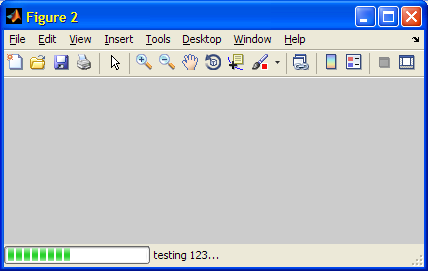
We can of course use the progress-bar and status-bar handles to modify their appearance within our code, for example within some loop. For example:
numIds = length(allIds); set(jProgressBar, 'StringPainted','on', 'Maximum',numIds, 'Value',0); for id = 1 : numIds % Update status bar set(jProgressBar, 'StringPainted','on', 'Value',id); msg = 'Processing %d of %d (%.1f%%)...'; statusbarObj.setText(sprintf(msg,id,numIds,100*id/numIds)); % do something useful... end % for all Ids % Some final status-bar updates... % Hide the progress-bar jProgressBar.setVisible(0); % Hide the corner grip cornerGrip = statusbarObj.getParent.getComponent(0); cornerGrip.setVisible(0); % or: set(cornerGrip,'Visible','off') % Set a red foreground & yellow background to status bar text statusbarObj.setText('All done - congratulations!!!'); statusbarTxt = statusbarObj.getComponent(0); statusbarTxt.setForeground(java.awt.Color.red); set(statusbarTxt,'Background','yellow'); set(statusbarTxt,'Background',[1,1,0]); % an alternative… |
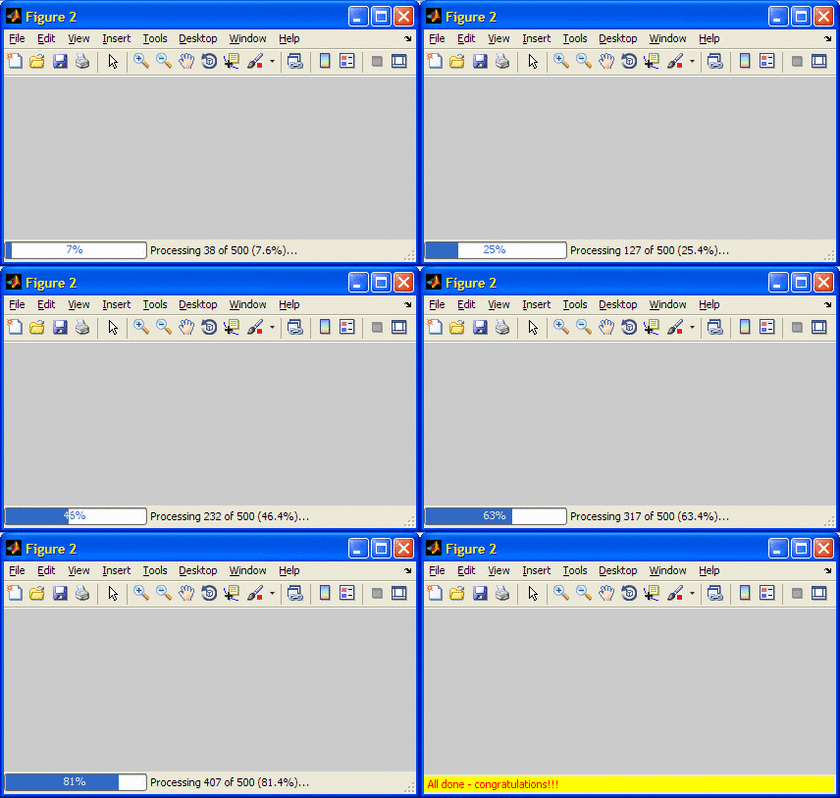
The progress-bar component was just a simple example of how to present non-intrusive controls/information in the figure status bar. Other controls (buttons, checkboxes etc.) can similarly be added.
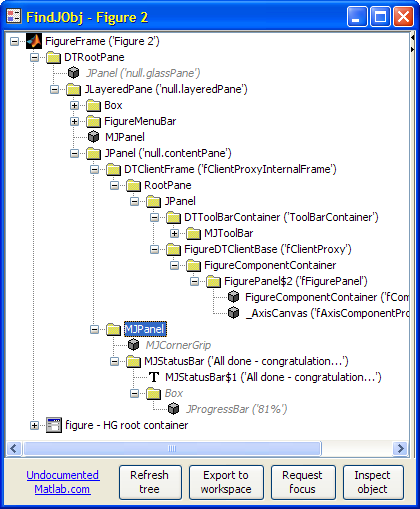
Note that the status-bar’s corner-grip (at its far right) is not a sub-component of the statusbarObj object like the label, but rather of its parent JPanel container. This is easily be seen using my FindJObj utility on the MathWorks File Exchange:
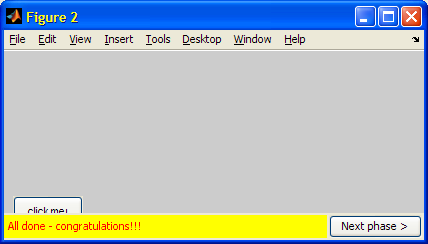
One final note: The status bar is 20 pixels high across the entire bottom of the figure. It hides everything between pixel heights 0-20, even parts of uicontrols, regardless of who was created first or the relative ComponentZOrder in the frame’s ContentPane:
% Add a "Next phase" button to the right of the text jb = javax.swing.JButton('Next phase >'); jbh = handle(jb,'CallbackProperties'); set(jbh, 'ActionPerformedCallback', @nextPhaseFunction); statusbarObj.add(jb,'East'); %note: we might need jRootPane.setStatusBarVisible(0) % followed by jRootPane.setStatusBarVisible(1) to repaint % Add a simple Matlab uicontrol, obscured by the status-bar hb = uicontrol('string','click me!', 'position',[10,15,70,30]); |
If you have made interesting use of Matlab’s status-bar, please share them in the comments section below.

Hello Yair,
I am using statusbar in my codes since I prefer waitbar docked. I wanted to know how to delete this object in a safe way.
In the help, I can read that the command
deletes status bar from current figure. But I had to comment the line 263 :
lasterrto prevent the message : Property Name already in use . It happens each time I recreate a statusbar or when I display a dialog box.
I guess that :
is not enough to delete this object.
Thanks,
Aurélien
Aurélien – you are correct: For performance reasons, the statusbar object is not really deleted when you issue
Instead, it is simply made invisible using the root-pane’s setStatusBarVisible(0) method in line #222. Then, when you recreate the statusbar, adding the internal handles to the CornerGrip, TextPanel and ProgressBar fails, since these properties already exist in the old (previously-hidden) statusbar object.
Your solution, to comment line #263, is probably the easiest and best.
Hi Yair,
It seems that matlab won’t support JavaFrame in future versions of Matlab.
are there any other way to intgrated the waitbar in my GUI?
@Nir – no. All the fancy GUI stuff needs Java. You can use this on all Matlab releases of the past decade. If you are scared about future releases then settle for Matlab’s plain-vanilla GUI or use a non-Matlab GUI to begin with.
thanks
How can I modify the position of the statusbar in a GUIDE, for example [10,10, 150, 200]? thanks!
@Luis – you cannot do it in GUIDE, only programmatically
Thanks for yours answers Yair.
Could you help me with these questions?
1. How I can include spinning icon in the status bar?
2. How I can close the place where the status bar and the Paneltext is loacted , after having used it and and change its color to transparent?
3. How I can change the dimension of the status bar?
Thank You for your time and patience with my questions..
Dear Yair,
Thanks for again a wonderful contribution!
However, I found a small bug, at least on my system. When creating a statusbar using your ‘statusbar’ function from the File Exchange, the other controls are properly placed in the beginning. But when I then move the window, all controls suddenly shift down (I guess 20 pixels). Is seems that MATLAB is not aware of the ‘extra space’ for the status bar when redrawing the controls.
I use MATLAB 2014b on Windows 7. I cannot test if this is also the case in older versions.
Is this a problem on my system, or is it solvable in the statusbar function?
Thanks in advance!
Best,
Mark
I have been having this problem since the R2014b prerelease on both Windows and Linux platforms.
I seem to have gotten a reasonably stable workaround by adding the following lines to the end of my function that creates the status bar:
This seems to be giving me a consistent appearance when the GUI is first displayed. If it is then resized graphically (by dragging the window corner), the GUI components still jump up and down randomly. But, if you disable window resizing (or, you know, just don’t try to resize it), the GUI appears stable.
Interestingly, if you don’t store the old position before the first change, you can’t appear to recreate it from the new position. For example, the following code does not work correctly:
Hello again,
So I was trying around status bar and I was trying to add a gridlayout or flowlayout to it so that I can do whatever I like with the layout of status bar but somehow none of the layouts allow statusbar handle. Any idea on that? I know, I can add any JAVA component once I have a layout handle so I was trying to add a gridlayout to status bar and then a couple of JAVA UI components to add.
Also, I tried your way of making JAVA root frame but it gives error.
RootPane = jFrame.fFigureClient.getWindow;
No appropriate method, property, or field ‘fFigureClient’ for class ‘com.mathworks.hg.peer.HG2FigurePeer’.
I think, it doesn’t work on Matlab 2015 as they suggest here – http://www.mathworks.com/matlabcentral/answers/196352-sim-i-am-gets-an-error
Not sure though! Sorry for spamming.
i want to make status bar that when user enter their name, the status state ‘User enter Name’ when user want to enter the age, the status change to ‘User enter Age’. How can i make it like that ?
@anon – see here: http://undocumentedmatlab.com/blog/setting-status-bar-text
Hi,
did anyone find a way to fix the controls, so they do not move when I change the window size?
Thx
Jan
Jan – if you mean the controls in the statusbar, the only controls that change their relative position are the ones that are attached to right (“East”) border, such as the “Next phase” button in my example in the post. If you wish them to remain in the same relative position, attach them to the left (“West”) instead.
hi,I have a problem when useing the statusbar.
I find that the statusbar will be vanished when exsiting two docked figures.
May you give me some advice?
Thanks
Hi
The statusbar will vanished when there exsiting two or more docked figures.
The statusbar needed to be fixed in the container?
May you give me some advices?
Thanks!
Matlab’s statusbar hack only works with non-docked figures. If you need them to work also in docked figures, replicate the functionality using regular panels.