
Java 1.6, included in Matlab releases since Matlab 7.5 (R2007b), enables programmatic access to system tray icons on such systems that support this functionality (Windows, Linux and possibly others). If the SystemTray object indicates that it isSupported(), then a TrayIcon can be added, along with an associated tooltip and popup menu:
sysTray = java.awt.SystemTray.getSystemTray;
if (sysTray.isSupported)
   myIcon = fullfile(matlabroot,'/toolbox/matlab/icons/matlabicon.gif');
   iconImage = java.awt.Toolkit.getDefaultToolkit.createImage(myIcon);
   trayIcon = java.awt.TrayIcon(iconImage, 'initial tooltip');
   trayIcon.setToolTip('click this icon for applicative context menu');
end

The icon image can be made to automatically resize to the system-tray dimensions, using the trayIcon.setImageAutoSize(true) method (by default the icon image will maintain its original size, getting cropped or appearing small as the case may be).
Of course, after initial setup, all the sys-tray icon’s properties (icon image, popup, tooltip etc.) can be modified with convenient set methods (setImage(), setPopupMenu(), setTooltip()) or via Matlab’s set() function.
Icon popup menus are very similar in concept to Matlab uicontextmenus. Unfortunately, they need to be programmed separately since Java does not accept uicontextmenu handles. This is actually quite easy, as the following code snippet shows:
% Prepare the context menu
menuItem1 = java.awt.MenuItem('action #1');
menuItem2 = java.awt.MenuItem('action #2');
menuItem3 = java.awt.MenuItem('action #3');
% Set the menu items' callbacks
set(menuItem1,'ActionPerformedCallback',@myFunc1);
set(menuItem2,'ActionPerformedCallback',{@myfunc2,data1,data2});
set(menuItem3,'ActionPerformedCallback','disp(''action #3...'')');
% Disable one of the menu items
menuItem2.setEnabled(0);        % or: set(menuItem2,'Enabled','off');
% Add all menu items to the context menu (with internal separator)
jmenu = java.awt.PopupMenu;
jmenu.add(menuItem1);
jmenu.add(menuItem2);
jmenu.addSeparator;
jmenu.add(menuItem3);
% Finally, attach the context menu to the icon
trayIcon.setPopupMenu(jmenu);    % or: set(trayIcon,'PopupMenu',jmenu);
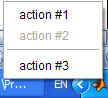
Unfortunately, neither the icon tooltip nor its popup menu supports HTML. The reason is that SystemTray is actually not part of Swing at all. The system-tray functionality resides in the java.awt package, and does not inherit javax.swing.JLabel’s (and Matlab uicontrols) support for HTML.
I have created a utility function called SYSTRAY, which is a convenience function that facilitates the setup and update of system tray icons. SYSTRAY (with source code) can be downloaded from the File Exchange.
In a separate post, I shall detail how informational pop-up messages can be attached to system-tray icons. This requires a bit of Java-hacking, so is beyond the scope of a single blog post.
Please note the new TODO page, which details my future posts. I would be happy to hear your requests for new topics, or telling me which topics you’d like to see earlier than others.
Addendum (May 15, 2009): A kind reader today left a comment on another post of this blog with a solution for some reported Java exceptions when using systray in Matlab R2008b onward.

Hi Yair,
I see in your TODO list that you are planning to cover the schema package. Even though the schema package is undocumented in general there are a lot of examples available in the toolbox directory to give a general sense of how to use it. There is not however a good example of how easy it is to use the schema.class javaInterfaces property to seemlessly access UDD objects from java code. I think people would be interested in that.
Donn
Hi Yair,
How does one set icon image, e.g. JButton, for uicomponent you posted?
Thank you.
@wei – assuming your component has a reference handle (let’s say jButton), follow this example:
@Yair,
I bypassed awt and directly went
Any difference?
@wei – your method is ok for simple filenames – I simply forgot that the ImageIcon constructor also accepts a filename. In practice, within that constructor it calls the awt Toolkit to process the file so there’s no performance difference, but obviously the code is more readable/maintainable this way. BTW, you can also use URL images, for example:
If you wish to use the icon to set a specific component mouse cursor (hover pointer), you DO need to use the awt.Toolkit:
@Yair, That’s nice to know. Thank you.
@Yair, Can one change figure’s icon wihtout JavaFrame?
wei – you can change the figure icon (not without the JavaFrame), but I’m told this may violate Matlab’s license. I’m really not sure why MathWorks (TMW) chose to limit this pretty harmless customization, but there you have it. In all my posts I try to stay on the good side of the line, so I’m afraid I can’t help you here… If you have a specific need for a customer project, then perhaps if you approach TMW they’ll agree to give you special permission.
Hi.
I’m using your code like this in Matlab r2014a in windows 8.1 First I got a java exception so I used this:
After running this code I have a blank icon near clock without no message and without no icon. What should I do?
Hi Yair,
did you already get a way to fix the java exceptions in matlab?
Thanks,
Ange Laure
@Ange – no, there are many other higher-priority items on my plate…
Hi Yair,
thanks! I get another problem. I have implemented a GUI in Java which contains Icon (ImageIcon). Then I exported the class files in a .jar file which I add to the classpath von Matlab. Unfortunately everything on the GUI appear apart from the icons. Do you know what I am doing wrong?
Regards,
Ange Laure
Matlab is obviously not finding your icon in the stated classpath…
If you need assistance debugging your specific program, contact me by email for a short consultancy.
Hi Yair,
You recommend calling
systray = java.awt.SystemTray.getSystemTray, and thensystray.isSupportedafterwards to check if the system tray is supported. Unfortunately, if the system tray isn’t supported (for example, I just tried this when running MATLAB remotely over an X Window), the original call togetSystemTraycan error.Instead, you can call
java.awt.SystemTray.isSupported. This returns true or false, and doesn’t error in an unsupported environment. CallgetSystemTrayonly if that returns true.thanks for the update Sam