
In the past weeks I’ve shown how Matlab menus can be customized in a variety of undocumented manners, using HTML, pure Matlab, and Java. Today I conclude this mini-series with an article that explains how to use the underlying Java object to customize menu item icons. Menu customizations are explored in depth in section 4.6 of my book.
A reminder: accessing the underlying Java object
Matlab menus (uimenu) are basically simple wrappers for the much more powerful and flexible Java Swing JMenu and JMenuItem on which they are based. Many important functionalities that are available in Java menus are missing from the Matlab uimenus.
Getting the Java reference for the figure window’s main menu is very easy:
jFrame = get(handle(hFig),'JavaFrame'); try % R2008a and later jMenuBar = jFrame.fHG1Client.getMenuBar; catch % R2007b and earlier jMenuBar = jFrame.fFigureClient.getMenuBar; end |
There are many customizations that can only be done using the Java handle: setting icons, several dozen callback types, tooltips, background color, font, text alignment, and so on. etc. Interested readers may wish to get/set/inspect/methodsview/uiinspect the jSave reference handle and/or to read the documentation for JMenuItem. Today’s article will focus on icon customizations.
Setting simple menu item icons
Many of Matlab’s icons reside in either the [matlabroot ‘/toolbox/matlab/icons/’] folder or the [matlabroot ‘/java/jar/mwt.jar’] file (a JAR file is simply a zip file that includes Java classes and resources such as icon images). Let us create icons from the latter, to keep a consistent look-and-feel with the rest of Matlab (we could just as easily use our own external icon files):
% External icon file example jSave.setIcon(javax.swing.ImageIcon('C:\Yair\save.gif')); % JAR resource example jarFile = fullfile(matlabroot,'/java/jar/mwt.jar'); iconsFolder = '/com/mathworks/mwt/resources/'; iconURI = ['jar:file:/' jarFile '!' iconsFolder 'save.gif']; iconURI = java.net.URL(iconURI); % not necessary for external files jSave.setIcon(javax.swing.ImageIcon(iconURI)); |
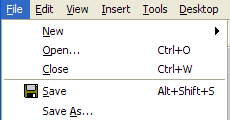
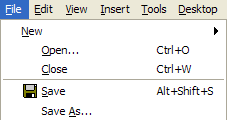
Note that setting a menu item’s icon automatically re-aligns all other items in the menu, including those that do not have an icon (an internal bug that was introduced in R2010a causes a misalignment, as shown below):
Checkmark icon
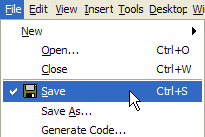
The empty space on the left of the menu is reserved for the check mark. Each Matlab menu item is check-able, since it is an object that extends the com.mathworks.mwswing.MJCheckBoxMenuItem class. I have not found a way to eliminate this empty space, which is really unnecessary in the File-menu case (it is only actually necessary in the View and Tools menus). Note that if an icon is set for the item, both the icon and the checkmark will be displayed, side by side.
The check mark is controlled by the State property of the Java object (which accepts logical true/false values), or the Checked property of the Matlab handle (which accepts the regular ‘on’/’off’ string values):
% Set the check mark at the Matlab level set(findall(hFig,'tag','figMenuFileSave'), 'Checked','on'); % Equivalent - set the checkmark at the Java level jSave.setState(true); |
![State = true, Icon = [ ]](https://undocumentedmatlab.com/images/uimenu_save_checked1.png "State = true, Icon = [ ]")
Customizing menu icons
Icons can be customized: modify the gap between the icon and the label with the IconTextGap property (default = 4 [pixels]); place icons to the right of the label by setting HorizontalTextPosition to jSave.LEFT (=2), or centered using jSave.CENTER (=0). Note that the above-mentioned misalignment bug does not appear in these cases:
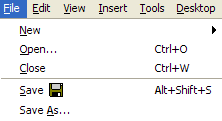
jSave.setHorizontalTextPosition
(jSave.LEFT)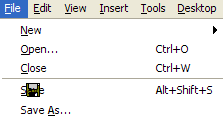
jSave.setHorizontalTextPosition
(jSave.CENTER)
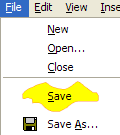
Note how the label text can be seen through (or on top of) the icon when it is centered. This feature can be used to create stunning menu effects as shown below. Note how the width and height of the menu item automatically increased to accommodate my new 77×31 icon size (icons are normally sized 16×16 pixels):
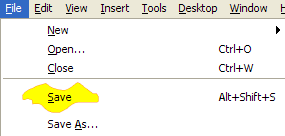
To resize an icon programmatically before setting it in a Java component, we can use the following example:
myIcon = fullfile(matlabroot,'/toolbox/matlab/icons/matlabicon.gif'); imageToolkit = java.awt.Toolkit.getDefaultToolkit; iconImage = imageToolkit.createImage(myIcon); iconImage = iconImage.getScaledInstance(32,32,iconImage.SCALE_SMOOTH); jSave.setIcon(javax.swing.ImageIcon(iconImage)); |
Remember when rescaling images, particularly small ones with few pixels, that it is always better to shrink than to enlarge images: enlarging a small icon image might introduce a significant pixelization effect:

Separate icons can be specified for a different appearance during mouse hover (RolloverIcon; requires RolloverEnabled=1), item click/press (PressedIcon), item selection (SelectedIcon, RolloverSelectedIcon, DisabledSelectedIcon), and disabled menu item (DisabledIcon). All these properties are empty ([]) by default, which applies a predefined default variation (image color filter) to the main item’s Icon. For example, let us modify DisabledIcon:
myIcon = 'C:\Yair\Undocumented Matlab\Images\save_disabled.gif'; jSaveAs.setDisabledIcon(javax.swing.ImageIcon(myIcon)); jSaveAs.setEnabled(false); |
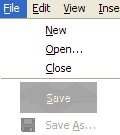
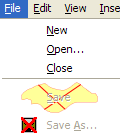
Note the automatic graying of disabled menu items, including their icon. This effect can also be achieved programmatically using the static methods in
com.mathworks.mwswing.IconUtils: changeIconColor(), createBadgedIcon(), createGhostedIcon(), and createSelectedIcon(). When we use a non-default custom DisabledIcon, it is used instead of the gray icon variant.This concludes my mini-series of customizing menus in Matlab. If you have used any nifty customization that I have not mentioned, please post a comment about it below.
 In an unrelated note, I would like to extend good wishes to Mike Katz, who has left the MathWorks mobile development team to join Kinvey a few days ago. Mike has been with MathWorks since 2005 and has been responsible for maintaining the official MATLAB Desktop blog, together with Ken Orr. I’m not sure yet which direction the Desktop blog will take, and by whom, but in any case it won’t be the same. You’re both missed, Mike & Ken!

Yair, is there any way to have the menu remain open after clicking it? Suppose you wanted to have a menu with a bunch of booleans, and you wanted to be able to quickly change the state of a bunch of them without doing click, reopen, click, reopen….
Thanks,
John
@John – I don’t believe that you can prevent the menu from closing. But if you trap the menu item’s callback, you could possibly immediately reopen the menu programmatically, as explained in the previous article of this mini-series.
Thanks Yair, I’ll try that.
Hi
You have nice web site and it is very interisting (Thanks)
I tried to insert an icon in Save file menu according to your doc.
But when MATLAB
reach to below line of my command line :
jMER = jFileMenu.getMenuComponent(1)
it set a message that it is:
Can you help me please?
@Morteza – as I explained in the previous article of this series, “the Save menu-item reference can only be retrieved after opening the File menu at least once earlier; otherwise, an exception will be thrown when trying to access the menu item“. Read there for additional details and workaround.
Hi Dear Yair Altman.
It work….
Thank so much
Hi Dear Yair
I try to put the icons for uicontextmenu in my program but I couldn’t. Can you help me.
Thanks.
@Morteza – You could try to use HTML images, as explained here. But perhaps a better way is to use Java icons in a Java context-menu, rather than a Matlab uicontextmenu.
If you have additional programming requests, please contact me by email for personal consulting.
Hi dear Yair
I try to put an image in uicontextmenu by html functions.
I use the : src=”” (function that shows image)
Even I put the root directory path like :
but nothing happened and just cross sign is shown.
but when I execute my GUI, MATLAB does not show the image in uicontextmenu.
Can you help me?
@Morteza – this will be answered in my next article, so stay tuned…
Hi Dear Yair
I’ll follow your articles…
Thanks anyway
Hi Dear Yair
last part I asked about put the image using of html format.
I use the pwd function in MATLAB and I found there is diffrent root path between Windows and html.
in windows pwd : C:\Program Files\MATLAB\R2012a\bin
but in html format : http://undocumentedmatlab.com/blog/customizing-menu-items-part-3/
‘/’ insted of ‘\’.
but when I try to do this in MATLAB but nothing appear!!!
Is there something that I should use extra?
Thank you so much
Hi Dear Yair
I try to open link of your E-mail from your web-site but I couldn’t.
So,I have a question about subject that I know it is not related to this page article, then excuse me.
Is it possible to write a program after make it as stand-alone application (*.exe) by compiler’s MATLAB ,at specific time delete itself to prevent extra use?
Thanks
i am amin from iran
maybe use pause …it is possible
Hi, Yair
Your website is so helpful! I followed some of the matlab customization on your website, now I wonder if I could change the font used in the MATLAB, like I tried something like:
but nothing happened.
Thanks.
@Shuhao – after modifying the prefs you need to restart Matlab. You need to ensure (of course) that the relevant preference name exists.
Thanks for the quick reply. Is there a way to see what are all the relevant preference names?
Of course – simply open the preferences file in a text editor
Haha, I see. Thanks a lot. I have looked into it but found no ‘MenuFont’. Guess there is no easy workaround within MATLAB to change the font size of the menu then.
Hi,
I’ve tried your code:
There is an error on the last line returning this message:
Undefined variable “jSave” or class “jSave.setIcon”.
I’m working on Matlab 2012…
Sébastien
This is article #3 in a series. You can’t run code from article 3 without reading articles 1,2 before… jSave is defined in the previous part of this series.
[…] having been published in what was then called the Desktop Blog (renamed MATLAB Spoken Here since Ken and Mike have left MathWorks and the blog focus has […]
I’m trying to insert an icon like in your post, but I can not. Could you send by email an example that is running? ie, for me to do ctrl+c ctrl+v. So I will be able to understand better.
@Sandro – I would be happy to provide you with my professional consulting services via email. Send me an email via the link at the top-right of this page if you are interested.
Hi Yair,
the great code indeed, it worked perfectly fine, but in R2014b it does not work any more.
is there any way around?
ohh, the name has been changed to fHG2Client, why and when????
the following code should be used
@Ilya – I described this over a year ago, in my HG2 update article.
@Yair – thank you for keeping things updated, it really helps to keep the code running 🙂
Hi Yair,
thanks for this interesting possibilities.
I was able to implement icons (and tooltips) for my menus this way. Instead of getMenuBar() I use findjobj to get the handles.
Now I also want to implement icons for some uimenus that are childs of uicontextmenus. Unfortunately findjobj seems not to find uicontextmenus (“No Java reference was found for the requested handle, probably because it is still invisible”) even if it is opened twice. So I look for a child uimenu and then use getParent(). But findjobj seems not to find the uimenu entries that are childs of the uicontextmenu but the ones of the main menu. When I “force” to look only for the one searched by using the ‘property’ option with the tag no handle is found.
Can you help using findjobj to find uicontextmenus or uimenus that are childs of uicontextmenus?
Best regards
André
Hey Yair,
I am creating a GUI in MATLAB 2014a. Using you findjobj utility, I am trying to change the background color of the menu bar and the sub-menus. For some reason none of the backgrounds will change color, but the text will. The menu bar seems to be originated from the Windows environment, but the sub-menus appear to be MATLAB based. Do you know why none of the backgrounds will change color?
Best,
Adam Foltz
@Adam – on some modern platforms, the menu items’ bgcolor is dynamically set by the system and cannot easily be overridden. In other words,
has no visible effect.
However, we can still use HTML/CSS, as follows:
how can change oreintation menus and uitable to right – left
Hi Yair,
I would like to make the labels editable in the menu itself. For example that you can richt-click on the word ‘Save’, a box pops up where you can select ‘rename’, and that the word ‘Save’ becomes editable. maybe with an editbox style uicontrol at the exact location of the word ‘Save’. Is there a way to do this? What i do now is, i use an inputdlg box. But that is less userfriendly. Below is a function that shows and hides lines in a figure based on their displayname where i’d like to use this.
Hi Yair,
The article is very helpful.
I tried to execute the commands in a single m-file programatically but got an error.
The error occurred was
if I execute the code one line at a time I did not face any issue .
Could you please help me with the issue
@Sneha – as I explained here, the menu needs to be opened once in order for its menu items to become visible.
Hi Yair,
Apologies for my late reply. I did not attach the code previously sorry for that
The below is the code written
So this code if I execute line by line I am able to get tool tip messages but i run code as a .m file I gt that error
@Sneha – add a short
drawnow; pause(0.01)between the calls tojFileMenu.doClickand the call tojFileMenu.getMenuComponent.More information:
* http://undocumentedmatlab.com/blog/matlab-and-the-event-dispatch-thread-edt
* http://undocumentedmatlab.com/blog/solving-a-matlab-hang-problem
Hi Yair,
I am writing MATLAB with using Java in my program; And I use
RolloverIconto set for my button with a image, but when I move mouse into button, my button does not show the image set.I need a advice from Mr. Yair !
Thanks
Using
RolloverIconrequires settingRolloverEnabledto true (default=false):