
Last week, I described how to access existing Matlab figure toolbar icons and how to add non-button toolbar components. Today, I describe how the toolbar itself can be customized using undocumented functionality and properties.
All the important undocumented customizations can only be accessed via the toolbar’s Java handle, which is retrieved so:
hToolbar = findall(hFig,'tag','FigureToolBar'); jToolbar = get(get(hToolbar,'JavaContainer'),'ComponentPeer'); |
One interesting functionality is enabling a floating toolbar, via jToolbar.setFloatable(1). The toolbar can then be dragged from its docked position at the top of the figure menu, becoming enclosed in an independent floating window (a non-modal javax.swing.JDialog child of the parent figure, to be exact). Since this toolbar window has a very small initial size and no name, a simple immediate fix is required:
% Modify Java toolbar properties jToolbar.setFloatable(1); hjToolbar = handle(jToolbar,'CallbackProperties'); set(hjToolbar,'AncestorAddedCallback',@dockUndockCallbackFcn); % Sample dockUndockCallbackFcn function function dockUndockCallbackFcn(hjToolbar, eventdata) if hjToolbar.isFloating jToolbarWin = hjToolbar.getTopLevelAncestor; jToolbarWin.setTitle('Toolbar'); %jToolbarWin.setResizable(1); %if you wish manual resize jToolbarWin.setPreferredSize(java.awt.Dimension(380,57)); jToolbarWin.setSize(java.awt.Dimension(380,57)); jToolbar.revalidate; %repaint toolbar jToolbarWin.getParent.validate; %repaint parent figure end end |
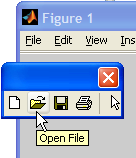
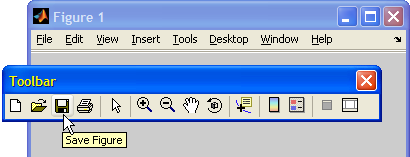
Re-docking a floating toolbar can be done by simply closing the floating window – the toolbar then reappears in its default (top) position within the parent figure window.
There are other interesting functions/properties available via the Java interface – readers are encouraged to explore via the methods, methodsview, inspect functions, or my uiinspect utility.
For example, addGap() can be used to add a transparent gap between the rightmost toolbar component and the window border: this gap is kept even if the window is shrunk to a smaller width – the rightmost components disappear, maintaining the requested gap.
setBackground() sets the background color that is seen beneath transparent pixels of button images and gaps. Non-transparent (opaque or colored) pixels are not modified. If the button icons are improperly created, the result looks bad:
jToolbar.setBackground(java.awt.Color.cyan); %or: Color(0,1,1) |

This problem can be fixed by looping over the toolbar icons and modifying the pixel values from their default gray background to transparent. An example for this practice was given at the beginning of last week’s article.
setMorePopupEnabled() is used to specify the behavior when the window resizes to such a small width that one or more toolbar buttons need to disappear – by default (=1 or true) the chevron (>>) mark appears on the toolbar’s right, enabling display of the missing buttons, but this behavior can be overridden (0 or false) to simply crop the extra buttons.
setRollover() controls the behavior when the mouse passes (“rolls”) over toolbar buttons. The default parameter (1 or true), displays a 3-dimensional button border, creating an embossing effect; this can be overridden (0 or false) to use a different 3D effect:
% Set non-default Rollover, MorePopupEnabled jToolbar.setRollover(0); % or: set(jToolbar,'Rollover','off'); jToolbar.setMorePopupEnabled(0); % or: set(jToolbar,'MorePopupEnabled','off'); |
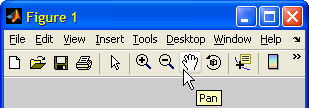
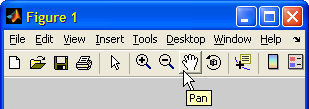
Rollover & MorePopupEnabled properties
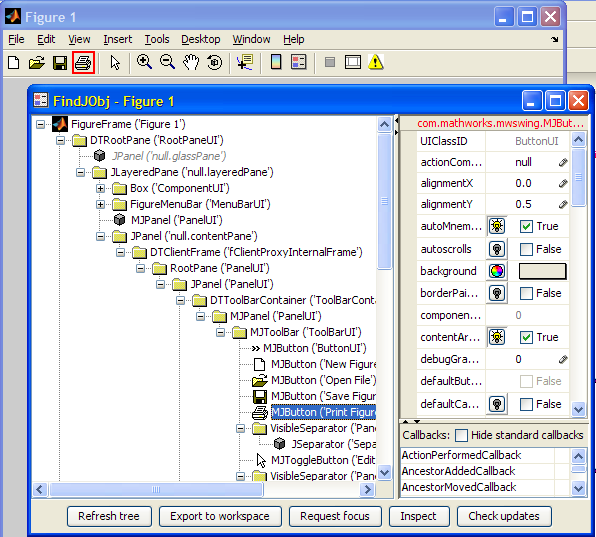
Remember that toolbars are simply containers for internal components, generally buttons and separators. These components may be accessed individually and manipulated. An example of such manipulation can be found in my FindJObj utility on the File Exchange, that lists the individual figure components: whenever the user selects a toolbar button (or any other Java component for that matter), its border is temporarily modified to a flashing red rectangle helping users understand the component’s location. Here’s the relevant code snip and screenshot (readers are encouraged to look at the actual code, which is more complex – FindJObj sub-function flashComponent()):
% Prepare the red border panel oldBorder = jComponent.getBorder; redBorder = javax.swing.border.LineBorder(java.awt.Color.red,2,0); redBorderPanel = javax.swing.JPanel; redBorderPanel.setBorder(redBorder); redBorderPanel.setOpaque(0); % transparent interior, red border redBorderPanel.setBounds(jComponent.getBounds); isSettable(compIdx) = ismethod(jComponent,'setBorder'); % flash by periodically displaying/hiding the panel for idx = 1 : 2*numTimes if idx>1, pause(delaySecs); end % don't pause at start visible = mod(idx,2); jParent = jComponent.getParent; % Most Java components allow modifying their borders if isSettable if visible % Set a red border jComp.setBorder(redBorder); try jComponent.setBorderPainted(1); catch, end else %if ~isempty(oldorder) % Remove red border by restoring the original border jComp.setBorder(oldBorder); end jComp.repaint; % Other Java components are highlighted by a transparent red- % border panel, placed on top of them in their parent's space elseif ~isempty(jParent) if visible % place the transparent red-border panel on top jParent.add(redBorderPanel); jParent.setComponentZOrder(redBorderPanel,0); else jParent.remove(redBorderPanel); end jParent.repaint; end end % idx flash loop |

@Yair,
There are 3 features of this toolbar window that really interest me:
1) only the close button is shown in the top bar, not the minimize or restore button, does this mean it is possible to modify that top bar as well? (add and remove buttons there, or change callbacks)
2) when the toolbar is undocked, the figure name does not show up in the windows start bar. Does this mean we could have other “child” figures, that dont show up in the start bar?
3) the tool bar window stays on top of the figure, but not on top of any others.
I’m really interested to hear your thoughts
Jason
Any idea how to make changes to the default figure toolbar that apply for *all* figures, including new ones that have yet to be created?
@Jason – the top (detached) toolbar is customizable just like a docked toolbar. I’m afraid I don’t know how to modify Matlab windows to have similar decoration effects (no resize/minimize buttons), nor how to create other child windows. If and when I learn more, I’ll post updates here.
@Tim – place your customization code in figureToolbarCreateFcn.m. This is an internal Matlab function (in the %matlabroot%\toolbox\matlab\graphics\ folder) that is called whenever the default figure toolbar is created. Depending on your Matlab release version, you may need to update a different internal function.
Excellent!
However, if I have correctly understood, modifying figureToolbarCreateFcn.m is no longer possible in recent versions (I am using 2012a). Is there a new workaround?
Thanks
Yair: Fantastic, that worked like a charm. I’ve used it to add a ‘Protect figure’ toggle to the standard toolbar. Here’s the code. Edit the file %matlabroot%\toolbox\matlab\graphics\figureToolbarCreateFcn.m and go to the line before this one:
and add the following code:
Thanks again!
Yair,
I’ve just run across one more question on this topic, and I cant seem to find an answer in the java forums. Do you know of a way to make the toolbar float by default, I would expect some command along the lines of setFloating, but it doesnt exist.
Thanks again
Jason
Jason – odd as this may sound, it appears that the default Swing JToolBar object (from which Matlab’s MJToolBar inherits) does not enable setting the ‘Floating’ property programmatically. See here, for example: http://java.sun.com/docs/books/tutorial/uiswing/components/toolbar.html#more
Matlab’s MJToolBar extends JToolBar with a getter method (isFloating()), but not with a corresponding setter method. Doing the following throws no exception/error, but also has no visible effect:
Yair,
Weird, it seems like something relatively fundamental that was left out. Thanks for checking on it though!
Jason
Yair
I can’t find the AncestorAddedCallback. I’ve inspected the MJToolbar object with the uiinspect utility and it seems to be not accesible. am i doing something wrong?
Thanks
Daniel
Daniel – which Matlab release and platform are you using? Also, what commands do you use to get the toolbar object and its callbacks? – The following should work:
Yair
i`ve just resolved my problem.
jToolbar = handle(jToolbar, ‘CallbackProperties’); is missing in the example on the top of the page.
Thanks for the new example.
Daniel
oops… my bad – sometimes a simple handle(obj) is enough to expose the callbacks, but sometimes not, so it is always advisable to use handle(obj,’CallbackProperties’).
Even MathWorks programmers encounter this limitation, as attested by the following internal comment within the built-in javacomponent.m function:
Anyway, I fixed the post accordingly.
Yair:
I was curious if you might know how to create a vertically oriented figure toolbar. I am not wise in the ways of java, and thus, I am not certain about how to go about relocating the figure toolbar from the top of the figure window to, say, the left hand side of the figure window. I am interested in designing a GUI, such that the user may elect to place my customized toolbar icons and associated functions somewhere else in the figure window besides the top.
I appreciate any feedback you might have. Thanks.
-Kris
@Kris – interesting question! Standard Java JToolBars (which the Matlab toolbar extends) allow floating toolbars to be manually dragged and pinned to the sides, but apparently the Matlab extension prevents it.
Here is how to programmatically place the toolbar on the bottom:
Unfortunately, when we try to use the same method for placing the toolbar on the left/right sides, the figure gets “frozen” and unresponsive. Perhaps someone can enlighten us what needs to be changed in the following code:
Yair
[…] Examples of toolbar customizations were presented in past articles (here and here). A future article will explain how to customize menu […]
Yair,
thanks for this, it is extremely helpful. Playing around with the jToolbar properties, I was wondering if there is a way to make the toolbar width less than the width of the window? I can adjust the height using preferred size, but adjusting the width does nothing.
Also, when adding matlab toolbars, it adds the dock button to the right of the toolbar. Is there a way to remove that. It shows up in the list of jToolbar components, but removing it does not seem to work.
Thanks,
JP
@JP – I don’t know of an easy way to reduce the toolbar’s width. Why do you wish to do this?
To remove the docking icon, simply use the fully-documented DockControls property of the figure:
I have a GUI that has an axes that fills the bottom left 1/4 of the window. I would like the toolbar to be directly above the axes, but not spill over into the content on the right half of the window.
@JP
How exactly do you adjust the height?
Did you by any chance find a solution for the width?
Thanks!
Hi Yair,
I am trying to build a GUI on Matlab 2012b that has a main toolbar with only three Icons, and other optional tool bars.
the point is, i need the main toolbar width to be only for the three icons, and when i select one of the optional toolbars it should come to right side of the main toolbar NOT under it.
Thanks
Yasser
@Yasser – you would need to play around at the Java level. It is possible, but there is no two-liner solution I’m afraid. Send me an offline email if you’d like my consulting help in this.
Hi all,
would there be posibility to doch a toolbar on the left side (or the right side) of a gui?
Thanks for all your help!
Daniel.
Yair,
With a
MJToolBar‘s setMorePopupEnabled set to true, non-native matlab components added to the toolbar do not seem to respond when activated from the popup (I guess a jMenu derivative?) that opens when the toolbar is not large enough for all its components. Am I missing something?Collin
@Collin – MorePopup is a Matlab extension to the standard Swing
JToolBarso it is not surprising that it does not behave well with non-Matlab components. If you want me to research the issue to see whether a solution can be found, then email me for a short consulting.