
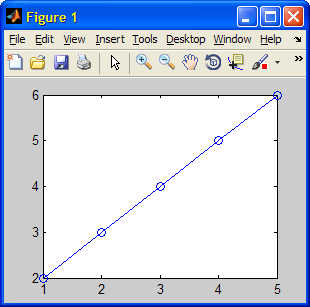
I have already written about several undocumented hidden properties in the past. Today, I would like to introduce one of my favorites: the plot-line’s LineSmoothing property. Compare the following two outputs:
% Standard (non-smoothed) plot-line plot(1:5,2:6,'o-', 'LineWidth',1); |
% Smoothed (anti-aliased) plot line plot(1:5,2:6,'o-', 'LineWidth',1, 'LineSmoothing','on'); |
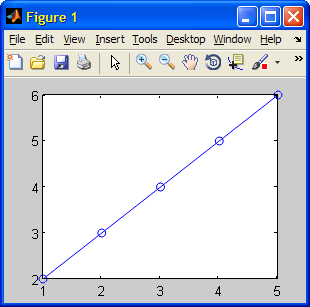
Line smoothing (aka anti-aliasing) works by inserting semi-transparent pixels at the edges of the actual plot line, thereby giving an optical illusion of a smooth line without pixelization effects. In Matlab, antialiasing is done automatically for fonts, but unfortunately not for plot lines that have non-default line-widths.
Line-smoothing has been around for a long time. It was even mentioned in a user comment on the official MathWorks Pick-of-the-Week article that introduced the excellent Myaa utility (Myaa uses applicative Matlab code to create anti-aliased plot effects).
However, to this day (R2010a), the LineSmoothing property remains hidden, undocumented and not officially supported.
Perhaps the reason for this is the following bug: text objects that cross a smoothed line are obscured by it. Depending on the text size and the line width, the text might be completely hidden, although its handle indicates that it is visible and despite it being created after the plot line!
plot(1:5,2:6,'.-', 'LineWidth',5, 'LineSmoothing','on'); text(2.2,3.5, 'abcd','Color','r'); |
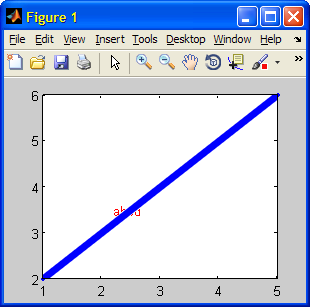
Note that this does not happen for standard (non-smoothed) lines:
plot(1:5,2:6,'.-', 'LineWidth',5); text(2.2,3.5, 'abcd','Color','r'); |
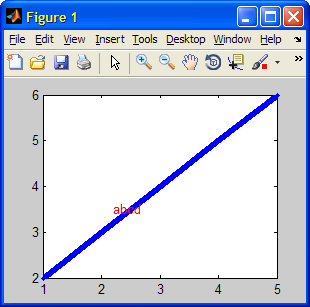
Luckily, there’s a very simple workaround for this, that allows both line-smoothing and non-obstruction: simply set the text‘s z-position to a higher value than the plot line’s. In our example, we used a simple 2D plot line (i.e., z-position = 0), so let’s set z-position=1 for our text label:
plot(1:5,2:6,'.-', 'LineWidth',5, 'LineSmoothing','on'); text(2.2,3.5,1, 'abcd','Color','r'); |
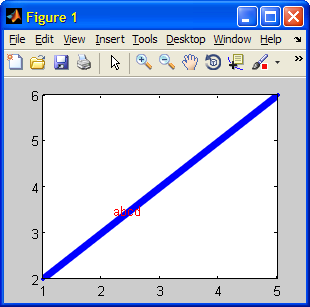
MathWorks have developed a special workaround for the LineWidth problem in OpenGL, using
opengl('OpenGLLineSmoothingBug',1) |
Unfortunately, as far as I could tell it has no visible effect in this particular case (perhaps I forgot to do something?).
One final note: the LineSmoothing property also exists for line, patch, surf, mesh and other similar objects.
Do you use have any other favorite undocumented/hidden property? If so, please share it in a comment below.

There are more issues with LineSmoothing. I’ve seen some situations where the lines don’t get drawn at all if line smoothing is on. They should really fix this and turn it on by default.
I find that line smoothing has an odd side effect when plotting with datetick (using version 7.6.0.324 = R2008a). Try this:
You should get a plot with tick labels around 7.3 and then an exponent label on the axes like “x10^5”. The following command changes the x-axis tick labels to dates:
datetick xAnd everything works as expected. Now repeat the above but set LineSmoothing to ‘on’. I find now, when datetick is called, that the tick labels change to dates but the “x10^5” label doesn’t disappear. Which is kind of confusing!?
Justin – I think the problem is just that line smoothing uses transparency, so it only works with the open gl renderer. I get the same bug you describe using open gl without turning on line smoothing.
This appears to be ‘on’ by default on the Mac version, because all plots are antialiased (and look quite good, too).
Is there a way to force this value to ‘on’ by default in the windows version? The standard set(gca,’DefaultLineSmoothing’,’on’) method does not work.
@Simon – LineSmoothing is not an axes property but a plot object (line/patch/etc.) property. Also, default properties should be set on the root (0) handle. Therefore, the correct syntax is:
It’s a bit confusing at first, but makes perfect sense once you look at it.
I can also confirm that this seems to be an opengl issue. Setting the renderer to opengl causes the FaceColor of rectanges (plotted using rectangle) to disappear when plotted on top of an area plot, which has a filled background. I suspect there is a general issue here with the opengl renderer and the plotting order algorithm that needs fixed.
I found another issue with LineSmoothing.
I have two axes in my figure. The first one contains multiple rectangles, all share the same ButtonDownFcn. In the other axes I use plot(…) with LineSmoothing turned On.
Lets say I have four rectangles in the first axes.
The effect is that, if I click into a non-rectangle area in the first axes, the ButtonDownFcn is activated and with each click, a different rectangle is passed as the first argument.
After four clicks everything behaves as expected again.
When I click on a rectangle, the same happens except that the number of clicks until I reach a consistent behavior again depends on the rectangle. E.g. the first rectangle needs 4 clicks, the second 3 clicks, the third 2 clicks and the last one only 1 click.
When I disable LineSmoothing, everything works as expected.
My OS is MS Windows 7 and the MATLAB Version is 7.11.0 (R2010b)
P.S: my figure’s renderer is set to “painters”. When I change it to “opengl”, not equal but similar click-issues occur.
Confirming odd behavior that appear to stem from ‘linesmoothing’.
This will show two curves – one regular and one smooth.
You can graphically select either one (click) and delete, but “Undo Delete” will not bring the curve back.
It shows the black squares where the curve ought to be, but the curve is not rerendered.
Using ‘painters’ and ‘zbuffer’ solve this problem, but do not give you smooth curves.
Matlab, can you please fix this?
When I run following code, I see some white dots along the circle. I would be grateful if someone can help me with this problem. If you make m = 1, and change view to view(0,90), you will not see them. However, I need 3D view and I need to zoom out also. Many thanks in advance!
Ali
Agree with Richard, John and others, seems to be a problem with linesmoothing in combination with the renderer.
Using linesmoothing, in my case, both the x and y axis disappear, but only on the bottom and left side (top and right still there). The ticks and tick labels are still there on all sides though. xlabel disappears as well, but not ylabel. And the legend seems to be “cut off” on the bottom and left side.
Tried same solution as John, same result. Also tried simple solutions, e.g. drawing black lines where the axes were supposed to be. Didn’t work, the lines were not displayed at all.
Using Matlab version 7.9.0 (R2009b) on Windows 7. And hope there will be a solution to this soon!!!
I have the same problem like Ruth, e.g. my x-axis is gone when using LineSmoothing. Any solution for this problem? Thanks!
Update: Problem occurs only in the figure window, as soon as I export the figure e.g. to PNG everything is ok (in the png file, in the figure window it is still missing the axis)
@Srynoname – it’s probably a renderer issue – switch the figure’s renderer property. In the future please use a real name and address – this is a serious website.
Nice find. One thing I noticed while testing this today on Matlab 2012a, OS X 10.8.2, is that LineSmoothing works with plot() but not semilogx/y(). Also, if you use plot() and semilogx() in different subplots in the same figure, then LineSmoothing seems to stop working for the subplots containing plot() as well.
@Oliver – LineSmoothing only works if the figure Renderer is (or can be converted to) OpenGL, because it is apparently an OpenGL feature, as Matt Dash has noted above. When you use semilogx/y, the renderer needs to be ZBuffer because OpenGL does not support exponential axes.
[…] One of Matlab’s limitations is the quality of its 2D graphics. Plots are more pixellated and less interactive than some might expect in a modern programming environment. […]
I have a problem I want to loop over a plot such that I do not keep writing a plot when I use a different initial condition. My initial conditions are in a list. Please help me if you have any suggestion.
@Wangari – you can simply update the existing plot’s XData/YData/ZData properties when you change the initial conditions.
If you don’t want to even do this, then you can set the plot’s XDataSource/YDataSource/ZDataSource property to the name of your workspace variable that will contain the modified data, and then the plot will automatically be updated.
[…] Without tweaking, Matlab line plots often look rough around the edges, but there’s a quick and easy fix: turning the LineSmoothing property ‘on’ […]
I found another issue with LineSmoothing. I have two axes in my figure. The first one contains multiple rectangles, all share the same ButtonDownFcn. In the other axes I use plot( ) with LineSmoothing turned On. Lets say I have four rectangles in the first axes. The effect is that, if I click into a non-rectangle area in the first axes, the ButtonDownFcn is activated and with each click, a different rectangle is passed as the first argument. After four clicks everything behaves as expected again. When I click on a rectangle, the same happens except that the number of clicks until I reach a consistent behavior again depends on the rectangle. E.g. the first rectangle needs 4 clicks, the second 3 clicks, the third 2 clicks and the last one only 1 click. When I disable LineSmoothing, everything works as expected. My OS is MS Windows 7 and the MATLAB Version is 7.11.0 (R2010b)
[…] Apparently, MathWorks solved the problems with the existing undocumented LineSmoothing property. Still, for some unknown reason, LineSmoothing remains a hidden/undocumented property. […]
I found another problem caused by LineSmoothing. If you need to export figure with smooth lines to EPS, you don’t obtain vector image but bitmap (in EPS). Yep, there is usually no need to smoothing things when you are exporting figures to vector images but sometimes you need both bitmap and vector which look pretty.
I guess the issue is caused directly by the renderer. Luckily, if figures are exported programmaticaly LineSmoothing can be switched on or off in accordance with your requirements.
I’ve not seen a way to export a figure and capture the linesmoothing, except for using windows PrintScreen and cropping which looks uh, ‘croppy.’ Since this is a feature dependent upon OpenGL, do you know a way to export straight from OpenGL? GhostScript maybe? Incidentally, I just checked this on r2013B and it remains an issue.
@Brad – try using the ScreenCapture utility.
If you insist on using the OpenGL buffer, read this: http://stackoverflow.com/questions/8862467/using-opengl-in-matlab-to-get-depth-buffer
Such a great option and I didn’t know about! Thank you very much 🙂
Hello Yair Altman,
When I run the program in R2010b and turn the lineSmoothing property to ‘on’ the border for the axis is disappearing. I tried to switch the ‘box’ property to ON and still doesn’t work like
But every thing looks fine when it’s run in R2012b. Would you please suggest some solution?
Sorry I forgot to copy the code in previous comment.
Line-smoothing is an OpenGL feature and so when you use it the figure changes its Renderer to ‘OpenGL’. In this renderer some of the axes borderlines disappear. This problem occurs in all Matlab releases, not just 10b, and it is not related to LineSmoothing but rather to a bug when Matlab uses OpenGL hardware. For example, this will also display the bug:
The workaround is to use OpenGL software-simulation mode – this displays the borderlines correctly (note: software mode is slower than hardware mode):
[…] Line in Matlab can look really pixelated. To get around that, you need to turn on line smoothing. […]
Thanks, this works well for my patch plots. Do you know if there is a similar command to smooth the edges of the patch itself such that if I turn off the lines of my patch the block shapes will have smoothed edges?
I prefer to use the patches with the lines set to off otherwise the objects appear larger than they really are.
I also would appreciate an answer to Greg’s question!
is as close as you can get with HG1.
In HG2 it should look much better since anti-aliasing is turned on by default and is supported across the board.
Line smoothing is very helpful for me. Thank you