
Toolbars are by now a staple of modern GUI design. An unobtrusive list of small icons enables easy access to multiple application actions without requiring large space for textual descriptions. Unfortunately, the built-in documented support for the Matlab toolbars is limited to adding icon buttons via the uipushtool and uitoggletool functions, and new toolbars containing them via the uitoolbar function. In this post I will introduce several additional customizations that rely on undocumented features.
This article will only describe figure toolbars. However, much of the discussion is also relevant to the desktop (Command Window) toolbars and interested users can adapt it accordingly.
Accessing toolbar buttons – undo/redo
Let’s start by adding undo/redo buttons to the existing figure toolbar. I am unclear why such an elementary feature was not included in the default figure toolbar, but this is a fact that can easily be remedied. In another post I describe uiundo, Matlab’s semi-documented support for undo/redo functionality, but for the present let’s assume we already have this functionality set up.
First, let’s prepare our icons, which are basically a green-filled triangle icon and its mirror image:
% Load the Redo icon icon = fullfile(matlabroot,'/toolbox/matlab/icons/greenarrowicon.gif'); [cdata,map] = imread(icon); % Convert white pixels into a transparent background map(find(map(:,1)+map(:,2)+map(:,3)==3)) = NaN; % Convert into 3D RGB-space cdataRedo = ind2rgb(cdata,map); cdataUndo = cdataRedo(:,[16:-1:1],:); |
Now let’s add these icons to the default figure toolbar:
% Add the icon (and its mirror image = undo) to the latest toolbar hUndo = uipushtool('cdata',cdataUndo, 'tooltip','undo', 'ClickedCallback','uiundo(gcbf,''execUndo'')'); hRedo = uipushtool('cdata',cdataRedo, 'tooltip','redo', 'ClickedCallback','uiundo(gcbf,''execRedo'')'); |
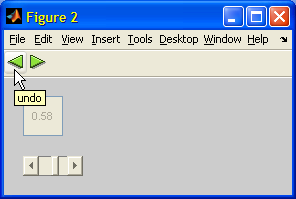
In the preceding screenshot, since no figure toolbar was previously shown, uipushtool added the undo and redo buttons to a new toolbar. Had the figure toolbar been visible, then the buttons would have been added to its right end. Since undo/redo buttons are normally requested near the left end of toolbars, we need to rearrange the toolbar buttons:
hToolbar = findall(hFig,'tag','FigureToolBar'); %hToolbar = get(hUndo,'Parent'); % an alternative hButtons = findall(hToolbar); set(hToolbar,'children',hButtons([4:end-4,2,3,end-3:end])); set(hUndo,'Separator','on'); |
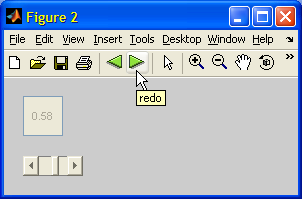
We would normally preserve hUndo and hRedo, and modify their Tooltip and Visible/Enable properties in run-time, based on the availability and name of the latest undo/redo actions:
% Retrieve redo/undo object undoObj = getappdata(hFig,'uitools_FigureToolManager'); if isempty(undoObj) undoObj = uitools.FigureToolManager(hFig); setappdata(hFig,'uitools_FigureToolManager',undoObj); end % Customize the toolbar buttons latestUndoAction = undoObj.CommandManager.peekundo; if isempty(latestUndoAction) set(hUndo, 'Tooltip','', 'Enable','off'); else tooltipStr = ['undo' latestUndoAction.Name]; set(hUndo, 'Tooltip',tooltipStr, 'Enable','on'); end |
We can easily adapt the method I have just shown to modify/update existing toolbar icons: hiding/disabling them etc. based on the application needs at run-time.
Adding non-button toolbar components – undo dropdown
A more advanced customization is required if we wish to present the undo/redo actions in a drop-down (combo-box). Unfortunately, since Matlab only enables adding uipushtools and uitoggletools to toolbars, we need to use a Java component. The drawback of using such a component is that it is inaccessible via the toolbar’s Children property (implementation of the drop-down callback function is left as an exercise to the reader):
% Add undo dropdown list to the toolbar jToolbar = get(get(hToolbar,'JavaContainer'),'ComponentPeer'); if ~isempty(jToolbar) undoActions = get(undoObj.CommandManager.UndoStack,'Name'); jCombo = javax.swing.JComboBox(undoActions(end:-1:1)); set(jCombo, 'ActionPerformedCallback', @myUndoCallbackFcn); jToolbar(1).add(jCombo,5); %5th position, after printer icon jToolbar(1).repaint; jToolbar(1).revalidate; end % Drop-down (combo-box) callback function function myUndoCallbackFcn(hCombo,hEvent) itemIndex = get(hCombo,'SelectedIndex'); % 0=topmost item itemName = get(hCombo,'SelectedItem'); % user processing needs to be placed here end |
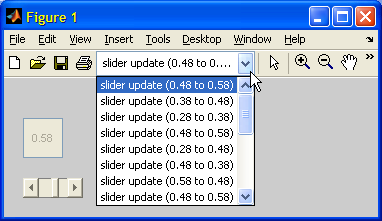
Note that the javax.swing.JComboBox constructor accepts a cell-array of strings (undoActions in the snippet above). A user-defined dropdownlist might be constructed as follows (also see a related CSSM thread):
... dropdownStrings = {'here', 'there', 'everywhere'}; jCombo = javax.swing.JComboBox(dropdownStrings); set(jCombo, 'ActionPerformedCallback', @myUndoCallbackFcn); jToolbar(1).addSeparator; jToolbar(1).add(jCombo); % at end, following a separator mark jToolbar(1).repaint; jToolbar(1).revalidate; ... |
A similar approach can be used to add checkboxes, radio-buttons and other non-button controls.
In next week’s post I will describe how the toolbar can be customized using undocumented functionality to achieve a non-default background, a floating toolbar (“palette”) effect and other interesting customizations. If you have any specific toolbar-related request, I’ll be happy to hear in the comments section below.

I’m still a little fuzzy on the idea of “memory leaks” so this may be unneccessary, but I usually modify your code like this:
not sure that getting the handle is necessary to prevent memory leakage, it doesn’t seem to hurt anything though.
Also I have a few figures that use swing objects, and occasionally doing a uistack or reordering the children of the figure will remove the swing objects in the toolbar. I have done a few work arounds, mostly just avoiding the reorg at all. Just thought I would post that as an issue along with this post so people know about it.
Thanks Yair as always
Jason
Fascinating – I wish Matlab would natively give us access to toolbars and status bars the same way it possible with your “hacks”. I have a question though. If I add a jButton to the toolbar and the status bar they look very different, i.e. the status bar button looks like a nice button but the one in the toolbar lacks the 3D effects. This can be reproduced with the following code:
How can I make the button in the toolbar look ‘nice’ too?
Another problem is that I have to use your statusbar function since none of the methods described in your status bar post on this site seem to work on my 2009b Matlab, i.e.
gives
in
The strange thing is that if I execute line by line in the command window it does work fine….
@Dani –
1. The toolbar button actually behaves consistently with the other buttons on the toolbar (and your windowing system, for that matter), namely that its border is painted only when you hover your mouse over the button. This is controlled by the JButton’s RolloverEnabled property (which is true by default, and can be turned off if you wish):
To always display a border, you need to override the JButton’s default Border property. Here’s a link to get you started and also sample code: http://java.sun.com/docs/books/tutorial/uiswing/components/border.html
2. Yes I know – this issue also occurred in earlier Matlab releases: there’s is a delicate timing issue involved here, which is solved in the statusbar utility but for space considerations was left out of the short code snippets in my posts. When you run the commands in the Command Window one at a time, there is enough delay between commands to solve this problem. Well – that’s what we have utilities for, right?
Yair
@Yair
this
helps, but the status bar button is still a lot ‘nicer’, e.g. rounded corners, 3D color transition effect, larger button relative to text size – what else do I have to invoke to get this effect in the toolbar?
Dani
Collecting most of the pieces of code above I get:
which runs nicely, and adds the two new buttons at the end of the toolbar. However, doing the following:
I get the error:
Inspecting “hButtons”, it contains 19 handles, but looking at:
it only contains 2 (!!!) handles, namely the two buttons that I just added.
I use MATLAB R2009b, and since I don’t have other versions of MATLAB installed, I don’t know if the is a “new feature” of the latest MATLAB release. I have tried setting “Toolbar” to both “figure” and “auto” but it doesn’t makes any difference.
Thanks for some inspiring reading 🙂
Henrik
@Henrik – You got this odd error because the toolbar buttons have hidden handles, which are only exposed to findall but not to findobj or get/set(hToolbar,’Children’). To solve this, temporarily set the desktop to show hidden handles, as follows:
– this is actually what findall does, if you look at its source with
Yair
@Yair
@Henrik
In order for the rearrangement of the buttons to work, in R2009b, it is better to do:
rather than:
Since in the first case, only the buttons are found (length(hButtonsChildren) == 18) whereas in the second case also the the handle to the figure toolbar is included AND the undocumented “uitogglesplittool” is divided into two handle elements (length(hButtonsFindall) == 20)!
Another interesting (although irretating) feature is, that if the following is performed:
the undocumented “uitogglesplittool” which used to the 11th element has now forcefully placed itself as the first element!!! And there it insist on remaining even if I do the following (with “ShowHiddenHandles” = ‘on’):
I don’t konw if “interesting” is the right word 🙂
Henrik
@Henrik
@Yair
I have another question reqgarding access to the toolbar. If I replace access to the standard figure toolbar
with a new toolbar through
then the java access to hToolbar2 does not work, i.e.
returns empty and I can consequently not add ojects such as jButton to it.
What is the reason for this?
@Dani – read my response above – the answers to your 2 questions are exactly the same answers I gave above:
1. You need to play around with the Border property. Search the web – there are numerous resources about this issue.
2. This is a timing issue again. Place a short delay/drawnow between your toolbar creation, your get(…,’JavaContainer’) and your get(…,’ComponentPeer’) to let everything render.
Yair
Hi,
I’d like to add a button to the default “figure” Matlab toolbar and have it become part of the button group that contains the zoom/pan etc. buttons. In particular, when the user clicks my button, i want the other buttons in the group to be deselected (btnup function). However, the btnup function requires the “groupid” of the button group; I cannot seem to find this default “id” that Matlab is using for this button group (the group that contains the zoom, pan, etc. buttons).
Any help would be appreciated, thanks!
@Danny – the btn* set of functions (btnup, btndown, btnpress, btnstate, btnresize and btnicon) work with btngroup. Specifically, you can use btngroup to define the group ID, which is stored in the buttons’ Tag property.
These functions are obsolete and are not supported (they have a valid help section but no doc page), although for some unknown reason they do not issue an obsolescence warning.
Although in this blog I frequently advocate the use of undocumented functions, this is NOT the case here. My advise: don’t use btn* functions.
Nowadays, Matlab uses an altogether different approach to toolbar buttons. There are actually two grouping levels: Low-level grouping logic (zoom in/zoom-out) is done programmatically in zoom.m (near the end of the file), whereas high-level grouping (zoom/pan modes) is done using a ModeManager (which is described in a dedicated article). This mode-manager object can be gotten via the following code:
Thanks for the advice! I’m trying your code and I got this output (below). Any ideas why it’s returning a null cbScribe value?
@danny – this could be because of a different Matlab version/platform than mine, or because your figure toolbar is hidden.
Try to simply display getappdata(gcf), to check maybe the data is named something other than ‘ScribeClearModeCallback’ on your system.
Otherwise, tell me your Matlab version and platform and I’ll see if I have anything intelligent to say about this…
Here’s the output of this command on my version (7.9.0 R2009b):
@danny – you need to enable one of the modes before this appdata property becomes available. For example, by clicking on one of the buttons or programmatically (e.g., zoom(‘on’) or pan(‘on’)).
OK, I got it to work, but I don’t see any information that corresponds to a “button group”. I was able to copy and paste some code from a GUIDE output file that works as far as creating a “group” of two buttons that are mutually exclusive (a previously selected button will become deselected if the other button becomes selected). However, I’m unable to add my own “custom” button to this group! Any tips? In the example code snippet below, I’m trying to add a third button “select region” to a group of two other buttons. The first two buttons seem to know about each other but don’t see the third button… I think it has something to do with the “createfcn” called “local_CreateFcn” that I copied from the GUIDE output. Any help is MUCH appreciated!!!!!!!!! 🙂 Thanks!!
Your first two buttons are zoom and pan, which know of each other and have internal code to handle mutual exclusivity. Your third button is different, so you need to let them know of each other.
This is more than the space here allows, so if you want to continue discussion, please contact me offline using the email link on the top-right of this page.
[…] Examples of toolbar customizations were presented in past articles (here and here). A future article will explain how to customize menu […]
[…] A couple of months ago, I explained how to customize the figure toolbar. In that article, I used the undocumented uiundo function as a target for the toolbar customization […]
Yair,
Good stuff! I’ve been always wondered about the possibility of adding popupmenu to a uitoolbar. I do have a question though.
I found if you save a figure (either via GUI or via hgsave) with added JComboBox toolbar component, the JComboBox is not saved. Do you know of any workaround to save java components to a .FIG file?
Here’s a quick example:
Let say we created a figure with a popupmenu toolbar:
TIA!
@Kesh – good point. Java toolbar customizations are not stored in the saved FIG files. However, you can place your code in the figure’s CreateFcn property, and it will automatically get executed whenever the figure is reloaded from disk:
@Yair – Brilliant solution!
I have another little annoyance that I’d love to get rid of. It’s a focus-related issue with JComboBox (I suspect it’s more than JcomboBox specific and applies to all Java GUI Components).
Here’s an example:
WindowsKeyPressFcn is supposed to display “1” in Command Window if a key is pressed anytime when the figure is on top. However, clicking on JComboBox causes WindowsKeyPressFcn to be not called until another part of the figure is clicked.
I’m guessing that this behavior comes from the fact that the figure window control has been passed on from Matlab to Java when JComboBox gets the focus; thus, Matlab callback events are no longer happening.
I’m currently using java.awt.Robot.mousePress to force the control back to Matlab. It works, but I’m wondering if there is a better solution (Can we mess with Java Focus Manager?).
Any ideas?
@Kesh – this is actually the expected behavior: the combo-box “consumes” the keyboard event and so the figure window is not aware that an event has occurred. Change your combo-box items to {‘1′,’2′,’3′,’4’} and then click 1,4,3,2 to see that the combo-box moves the selection to the next relevant entry. It is really quite intuitive once you see it.
BTW, the combo-box keyboard listeners can be removed, but I strongly suggest to NOT do it, since it will also prevent using the arrow keys etc. Moreover, many users will actually expect the regular behavior.
Yair,
Actually, I thought of that right after I posted yesterday so I did some more testing and found out that the behavior of a Matlab uicontrol popupmenu is indeed what I expect. For example, create a figure with a uicontrol popupmenu and enable both its callback and figure’s keypressfcn:
Then, when you put focus on the popupmenu and press “1” key, Matlab prints:
I believe I found the fix. Simply the same KeyPress callback function can be assigned to the Java combo-box’s KeyPressCallback.
Thanks for your tips and great blog!!
Hi Yair&all,
I can not find out how to have the JComboBox size fitting the elements size. In my application it takes all the place available in the Toolbar.
Has anyone a clue?
Thanks
Thierry
@Thierry – try using a
javax.swing.Boxcomponent following yourJComboBox.@Yair: thanks for the quick reply.
I’ve found another way by limiting the max width:
Hey everybody,
I have a working JComboBox. 🙂
However, I made it Editable and I want the drop down list to contain a history of what was typed into the JComboBox.
I though it would be as easy as calling the ‘addItem’ method in the ‘ActionPerformedCallback’…but its not working.
I get the error: “Attempt to reference field of non-structure array.” when using
It doesn’t seem to recognise hCombo as a jComboBox object.
So I set
and then ran
and I got this error: “No appropriate method, property, or field addItem for class hg.javax.swing.JComboBox.”
I find it especially perplexing since I can successfully run
from outside of the callback, right after I create the JComboBox !?
Does anybody know how to change/add to the ComboBox item list from the callback?
Or even just retrieve the entire item list (not just the selected item)?
Thanks,
Brian
p.s. I also get this Warning every time I create the JComboBox: “Warning: Possible deprecated use of set on a Java object with an HG Property ‘ActionPerformedCallback’. ”
Should I be worried about that?
@Brian – why not pass the
jComboreference directly to your callback function?Thanks Yair!
How silly of me, that works great.
Though I thought jCombo was already being passed to the callback as hCombo.
Apparently not…so what is hCombo ?
Thanks again,
Brian
hCombo is an automatically-generated Matlab wrapper for jCombo that is created when the Java event is converted into a Matlab callback. In theory it should enable you access to the entire jCombo functionality, but in practice…
Hey Yair,
This is one of the many articles I’ve read on your webpage and I just wanted to stop by and say thanks for providing the exact insight I needed!
Best,
Josh
@Josh – I’m glad you like it
I’m doing a GUI using GUIDE, I have several toolbar buttons, what generates their respective Callbacks but I tried to addapt your scripts to change one of the toolbar icons and it does nothing. What am I doing wrong?
I’m asking this because import tool in iconeditor doesn’t work (??) [Matlab R2013a]
@Mafap – without looking at your code there is no way of knowing what you did wrong. If you’d like me to look at and fix your code, email me.
for example I have this
I wanted this to put some icon in my toolbar but I don’t understant where should I use your scripts because you use them in a programatic environment and I’m using GUIDE.
Thanks
You can place the scripts in the figure’s *_OutputFcn function that is generated by GUIDE.
*_OutputFcn is supposed to return outputs for commmand line and how can I associate this with my created toolbar (OPT icon in this case)?
Hello everyone,
I have a very basic question, but I can’t find the answer. I want to create a Matlab toolbar from zero, with an “open button”, “zoom in” and “zoom out”. How do I do it?!?!
I create the handle to the Toolbar
ht=uitoolbar(hFig);
and then … Where are the standard Toolbar buttons of Matlab documented?!?
Thanks in advance for all your help!
Daniel.
@Daniel – I think the easiest solution in your case would be to use the standard Matlab figure toolbar, and simply hide those buttons that you don’t need by setting their Visible property to ‘off’.
Related: http://undocumentedmatlab.com/blog/customizing-standard-figure-toolbar-menubar/
Hi
i’m trying to run a class method trough a uipushbutton clickedcallback call.
The issue is that I get the error
I can just run normal function but this is not useful for me
@Michele – you’re probably forgetting that all callbacks automatically recieve the event object handle (a double in the case of HG1) as a first parameter, and eventData as the second parameter.
The correct way to define such a callback is:
Hey Yair,
I just bumped into an aggravating issue with Java toolbar components (R2014a) which I don’t think has been brought up on this site.
The problem: Java based toolbar components disappear when their ancestral figure’s Children property is permuted (including running uistack function). It appears that when figure’s Children is permuted, it invalidates jToolbar object (i.e., ComponentPeer of uitoolbar’s JavaContainer). Here is a minimum working example:
Do you have any (elegant) workaround for this problem?
@Kesh – You could possibly trap the ComponentHierarchyChanged callback (or something similar) and then re-update the toolbar.
But I really don’t see this as a major issue: people rarely reorder toolbar components, and when they do it’s mostly when the GUI is first created, so it’s easy to simply update the java stuff after that point, instead of before as you have done.
I’m implementing a Matlab application with “dynamic” tabs (adding/deleting tabs with their own menu & toolbar items on the fly.) So, it just happened to be a major issue for me, unfortunately. I’ll look into ComponentHierarchyChanged although I’ve tried several other events/callbacksyet, but so far no success. It would’ve been nice if ObjectBeingDeleted event is present for Java objects…
I’m not sure if this is a common problem. But some of our clients (including me as well) are confused about the behavior of the figure toolbars when docked. In later releases (~R2012 and above) these toolbars are automatically moved to the Matlab ToolStrip when docked into the main window. This makes access to the toolbar harder and much slower, especially if the docking position is at the bottom of the main window.
Is there a way to avoid this behavior, so that the toolbar stays on its figure window when docked?
@Sebastian – I agree that this is confusing. I am not aware of a way to avoid this.
Hi Yair, excellent blog as always.
I have the doubt if it is possible to use an uitab as a parent of an uimenu or a toolbar?
I’d like to add one of those options to my uitab.
Thanks.
@Santiago – AFAIK you cannot parent a Matlab uimenu or uitoolbar to a uitab. However, you can add Java components (in your case,
JMenuBarandJToolBar) using the javacomponent function.However, IMHO a better alternative would be to set the uitabgroup’s SelectionChangedFcn property to a custom Matlab callback function, that would hide/show various components in the top-level (figure) menu-bar and toolbar based on the currently-selected tab.