
In one of my larger Matlab applications – Integration-lab Debriefing System (IDS, which shall be described in a future dedicated article) – I wanted to present a panel-level checkbox that applies to the entire panel contents. In my particular case, the IDS uipanel contained a Java table (another future topic) with multiple selectable rows, and I needed a global checkbox that selects all (or none) of them at once:
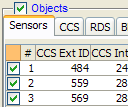
One way to do this is to calculate the checkbox’s desired position relative to the uipanel and place a regular checkbox-style uicontrol there. The checkbox can even be made a child of the uipanel with ‘normalized’ units, thereby moving and resizing it together with its uipanel parent when the later is moved or resized.
But there’s a much simpler method that want to share. It relies on the undocumented fact that the uipanel‘s title label is a simple hidden uicontrol child of the uipanel handle. This uicontrol handle can be found and simply transformed from a ‘style’=’text’ control into a ‘style’=’checkbox’ control, as follows:
% Prepare the panel hPanel = uipanel('position',[0.2,0.2,0.4,0.4], 'title','Objects'); % Get the title label's handle warning off MATLAB:Uipanel:HiddenImplementation % turn off warning hTitle = setdiff(findall(hPanel),hPanel); % retrieve title handle hTitle = get(hPanel,'TitleHandle'); % alternative, uses hidden prop % Modify the uicontrol style; add 20 pixel space for the checkbox newPos = get(hTitle,'position') + [0,0,20,0]; % in pixels set(hTitle, 'style','checkbox', 'value',1, 'pos',newPos); |
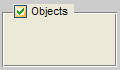
Note that we can retrieve the title handle using either the uipanel‘s hidden property TitleHandle, or by scanning the panel’s children using findall. I prefer the TitleHandle approach because it does not require modification (minor as it might be) when the panel already contains other children.
The down-side is that since TitleHandle is an undocumented hidden property, it may change its name, its behavior or even be removed in some future Matlab release. In fact, there’s even a Matlab warning about this, unless you turn it off using:
warning off MATLAB:Uipanel:HiddenImplementation |
We can use this approach for more complex options panels, as the following example illustrates. Here, we set radio-button controls rather than a checkbox control, and also modify the title color to blue:
% Main panel and basic alternative control hPanelMain = uipanel('pos',[.1,.1,.8,.8], 'Title','Main', 'units','norm'); hAlt1 = uicontrol('parent',hPanelMain, 'units','norm', 'pos',[.1,.8,.5,.1], 'style','radio', 'string','Alternative #1'); % Alternative options panel #2 hAlt2 = uipanel('parent',hPanelMain, 'units','norm', 'pos',[.07,.4,.5,.35], 'title','Alternative #2'); hAlt2Title = get(hAlt2, 'TitleHandle'); newPos = get(hAlt2Title,'position') + [0,0,20,0]; % in pixels set(hAlt2Title, 'style','radio', 'pos',newPos); hAlt2a = uicontrol('parent',hAlt2, 'units','norm', 'pos',[.2,.6,.7,.3], 'style','checkbox', 'string','Option 1'); hAlt2b = uicontrol('parent',hAlt2, 'units','norm', 'pos',[.2,.2,.7,.3], 'style','checkbox', 'string','Option 2'); % Alternative options panel #3 hAlt3 = uipanel('parent',hPanelMain, 'units','norm', 'pos',[.07,.05,.5,.3], 'title','Alternative #3'); hAlt3Title = get(hAlt3, 'TitleHandle'); newPos = get(hAlt3Title,'position') + [0,0,20,0]; % in pixels set(hAlt3Title, 'style','radio', 'pos',newPos, 'ForegroundColor','blue'); hAlt3a = uicontrol('parent',hAlt3, 'units','norm', 'pos',[.2,.5,.7,.3], 'style','popup', 'string',{'Option 3a','Option 3b','Option 3c'}); |
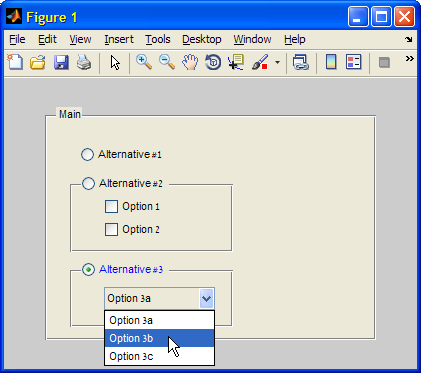
Note that since the hAlt2Title and hAlt3Title radio-buttons are children of their respective uipanel parents, we cannot use a simple uibuttongroup to group them in a mutual-exclusion group. Instead, we must use a dedicated callback function. This is actually quite easy:
% Set the callback for all relevant radio-buttons hButtonGroup = [hAlt1, hAlt2Title, hAlt3Title]; set(hButtonGroup, 'Callback', {@SelectionCb, hButtonGroup}); % This is the callback function that manages mutual exclusion function SelectionCb(hSrc,hEvent,hButtonGroup) otherButtons = setdiff(hButtonGroup,hSrc); set(otherButtons,'value',0); set(hSrc,'value',1); % needed to prevent de-selection end |

In the first image in this article, how did you achieve the horizontal line under the tabs that are not active?
Alex – The uitab control (explained here, with additional articles earlier this month that showed how to customize the tab appearance and behavior), hides the separator line in its internal implementation. In the example on this page I used a Java JTabbedPane directly, and this preserves the separator line. Here’s a simple example:
Thanks, that’s exactly what I was looking for. Can you give ma an example how to add a Matlab uicontrol and axes to a tab? Can I set the ‘parent’ property to an uicontrol or is there another way now?
Alex – Matlab uicontrols and axes cannot be added to Java containers (well, at least not without a herculean effort).
This is why MathWorks implemented uitab so that uicontrols/axes are not added directly to the tabs but rather to invisible Matlab containers that are handled by the tab callbacks.
Under the hood, uitab is a simple JTabbedPane that has no containers, only tabs. So, fixing it such that the missing separator line appears should be a simple enough exercise for you.
Please post the necessary changes to the uitab.m file (or its relatives) here if and when you succeed.
Is it in the schema.m? I tried to modify the line
but I couldn’t see the effect.
I’m new to Java, so could you please give me more hints?
I looked at jTabGroup using
is there a property to make the separator line appear?
[…] Notice that the panel names are still missing. So far no solution for this has been found. Perhaps this can be overcome using the fact that uipanel titles are simply hidden children of the panel object. […]
Can i add callback on any property change of matlab uipanel or uicontrol?
@Ninad – you can try to use property-change listeners.
Hello Mr. Altman,
I don’t know where exactly to ask, so I ask here.
I found in the internet one respond from you
I have tried this code with Matlab 2013b and the Panel is empty somehow. I don’t know why.
But my question IS… I want to add an undetermined amount of editboxes and labels to a panel. It can be 1 or 32 or even more.
I don’t want to resize them according to the space because then they would be extremely too small. So i need a Scrollbar.
I thought to use a JPanel and put it in a JScrollpane, but i failed at the first step up there. The jPanel is empty.
Do you know what’s wrong?
greetings
@Patrick – you used javacomponent incorrectly. Read about the correct usage here: http://undocumentedmatlab.com/blog/javacomponent
If you’d like my consulting help with setting up a scroll-panel and other such advanced GUI stuff, please contact me offline – my email link is at the top-right of this page.
Hello Mr. Altman,
i don’t understand. It’s from your own post here.
https://www.mathworks.com/matlabcentral/newsreader/view_thread/148636
@Patrick – just do as I suggested, read the link I provided.
In R2014b, it seems like the TitleHandle property is gone. Is there another way to have panel-level check boxes?
@Kusi – no: in HG2 (R2014b) the Matlab uipanel is (finally!) implemented as a true Java Swing component (deriving from
JPanel), and the title is implemented as a standard Java titled-border. In other words, it is no longer a separate uicontrol.Instead, you can simply place a dedicated checkbox uicontrol on top of the panel, you just need to ensure the position is correct and normalized so that it moves with the panel when it changes its size/position.
@Yair: Could you provide an example of doing this (in HG2)? I can’t get it to work (i.e. I don’t know how to put a checkbox uicontrol ‘on top of’ the panel?
Very much appreciated!
Garuve, one easy way to put a control on top of a panel simply put the panel as the parent.